For Support
Email: support@minet.support
Phone: 276-632-7500
Learning the Phone
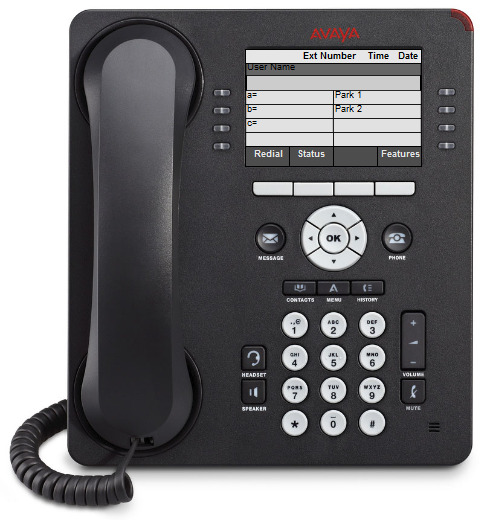
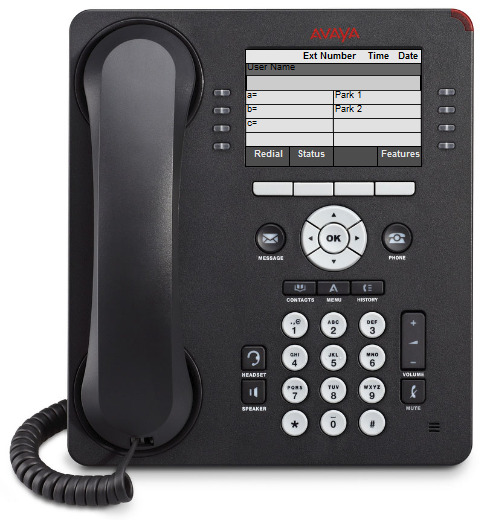
 Feature Buttons – These buttons run vertical beside the screen. They allow you to choose different features, (Park, Ext. specialty programmed buttons) and can be programmed to fit your needs
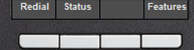 Soft Keys – These buttons are below the screen. They allow you to choose the options based on what the phone is currently doing. If the phone is sitting at the home screen, you see different options than if you are on a call or if the phone is ringing. These buttons allow you to choose those options.

Message Button – Takes you to voicemail. It will light up if you have a voicemail

Phone Button – Takes you back to the home screen. Think “Phone Home”

Navigation Button – Allows you to navigate menus and list (such as redial or call history)
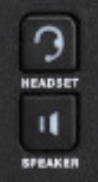
Speaker Button for Speaker phone
Headset Button if you have a wired or wireless headset.
 Volume and Mute Buttons – Change the ringer volume or in call volume or mute a conversation.
 Contacts – Personal and Global Phone Book
 Menu – Phone Menu
 Call History – Allows you to see All Calls In, Out, or All together
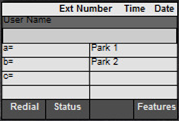 Home Screen - Please take note of your specific extension number located at the top center of your phone’s home screen. All buttons on the home screen are customizable to meet your business’s needs. There are 24 option spaces that can be navigated to by using the navigation buttons.
Login
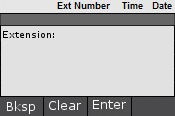
Extension: This is the 4 to 6 digit number at the top of your phone. Most customers’ extensions look like 999101
Passwords are generally 123456 or 1001
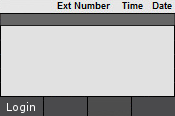
If your phone resets and asks you to login, here is the procedure.
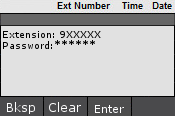
Making a Call
To make a call, just begin dialing the number. By default, the system will chose the speakerphone unless you have the handset picked up.
MINet Solutions allows 7 digit, 10, and 11 digit dialing, as well as, international calls*. Please note that domestic long distance is included in your bill, but international calls are charged extra per minute.
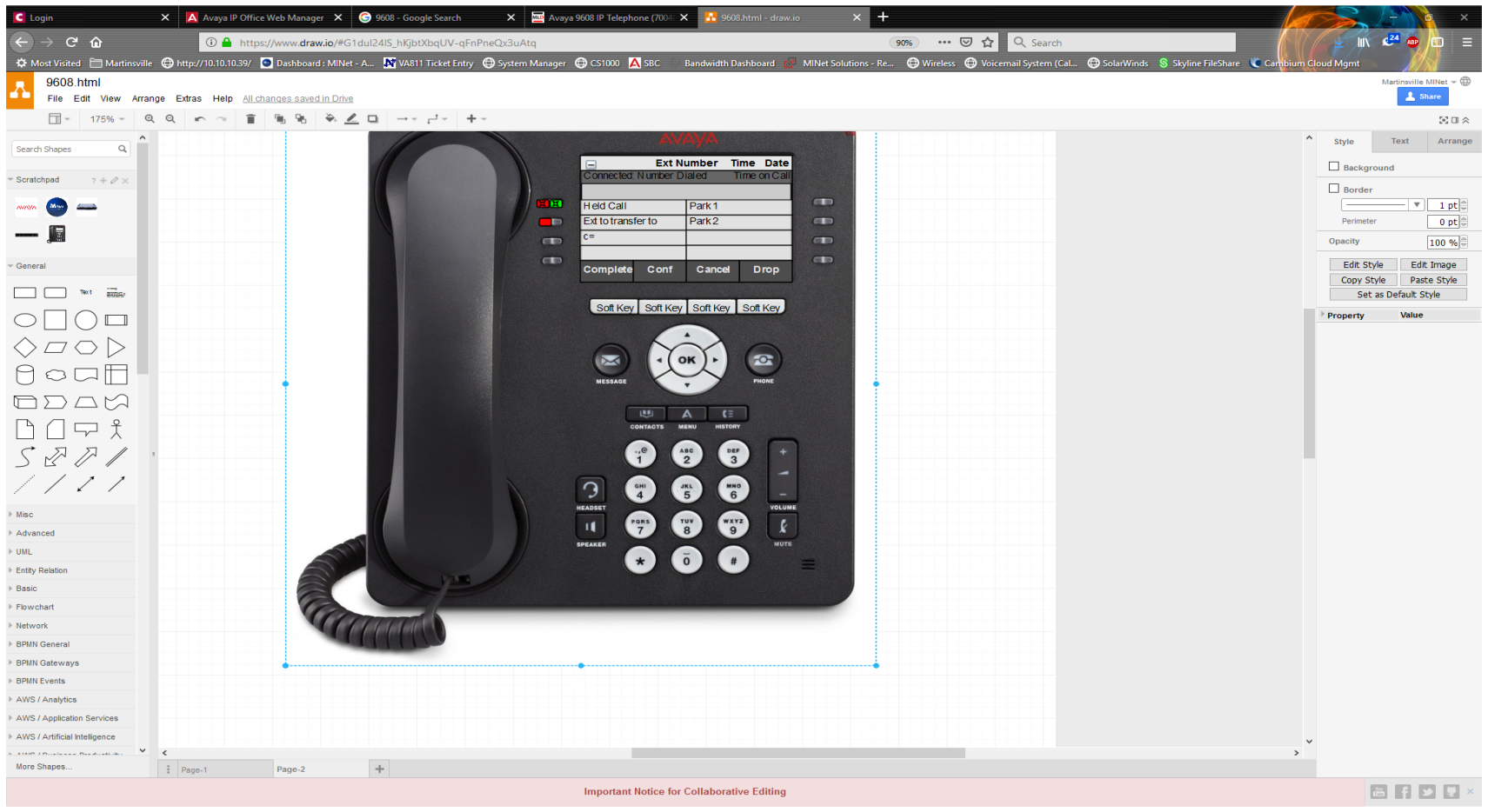
Once connected, your screen will change: Notice the soft keys change to Hold, Conf, Transfer, and Drop
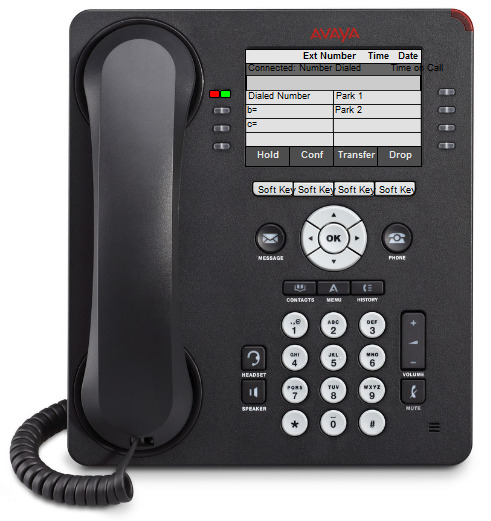
Hold – Places call on hold, only at the extension that answered the call, if you want to place a call on hold and pickup at another location, use the call park buttons (Park 1 and Park 2)
Conf – Conference the person on the call with up to 6 people.
Transfer – Transfer a call to another extension or external line.
Drop – Hang Up the call
Calls on Hold
Calls on hold are to hold a phone call at your desk phone exclusively.
To place someone one hold, while in the conversation, press the hold soft key.
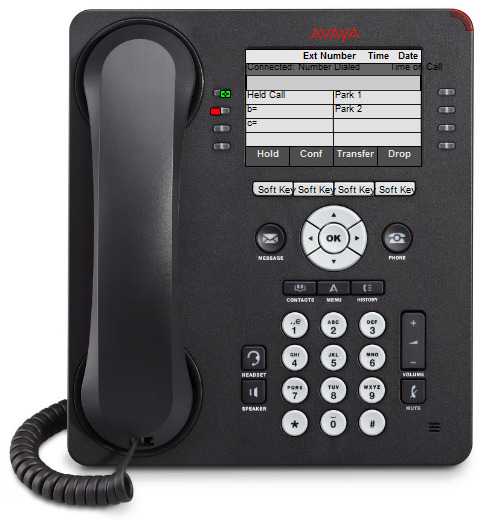
The held call will flash the indicator light and will continue to display the number that was on hold.
To retrieve the call on hold, just press the blinking indicator light beside the feature button with the number you had placed on hold.
Transfer a call
To transfer a call, press the transfer soft key. 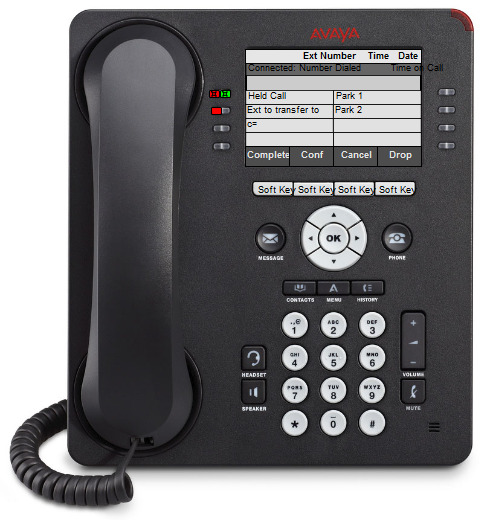
The call will automatically be placed on hold and the indicator will flash. The second extension line will light up; dial the number or extension, or press pre-programmed user buttons you wish to transfer to. This will dial the extension or line you are transferring to and allow you to announce the person you are transferring. To finish the transfer, press complete before or after announcing the caller.
Call Park
Call parking is very similar to older phone systems where we would place someone on hold on line 3 and then let someone pick up that call at another extension.
To Park a Call
While on a call, press the park button on the feature keys. The park button will begin to blink on all phones that have a park button. You may then notify the intended person that they have a call on Park Button 1, 2, etc.
To Unpark a Call
To pick up a parked call, just press the blinking parked button, then press Connect on the soft keys.
Home Screen Options
We can customize your phone’s home screen with the following options.
- Users
- Call Forwarding
- Intercom
- Hunt Group Options
- Speed Dials
Users
We can put your internal extensions on your phone. By having users on your phone, you can call the person with one button, transfer and conference easier, as well as see if they are actively on the phone.
Call Forwarding
Transfer all calls, Follow Me options, and mobile twinning. If you would like to utilize call forwarding, talk to MINet Solutions to determine which options is best for you and your business.
Intercom
Make announcements directly of the speakerphone.
Hunt Group Options
Cut phones on and off with the touch of a button.
Speed Dials
We can put numbers you call constantly directly on your home screen.
Voicemail
By default all users have a voicemail
Default user password: 1001
If you have a voicemail, the Message button will turn red.
Listen to Voicemail:
- Press the Message Button
- Enter your password (By Default 1001)
- Use the navigation buttons to go to the voicemail
- Select the New Messages
- Use the soft keys to play the message or call the person back.
Change your personal greeting:
- Press the Message Button
- Enter your password (By Default 1001)
- Use the navigation buttons to go to Greeting
- Follow the soft keys to record or listen to your current greeting.
Change your voicemail password:
- Press the Message Button
- Enter your password (By Default 1001)
- Use the navigation buttons to go to Passcode
- Follow instructions on screen
Was this article helpful?
That’s Great!
Thank you for your feedback
Sorry! We couldn't be helpful
Thank you for your feedback
Feedback sent
We appreciate your effort and will try to fix the article