How to connect to MUNIS Cubes
This guide provides a step-by-step process for connecting to MUNIS Cubes using Excel, making data access straightforward for users. It simplifies the integration of financial data into your reports and analyses, enhancing your ability to manage and interpret organizational finances effectively. Following these instructions will ensure you can successfully retrieve and utilize data from the MUNIS system for informed decision-making.
1. Open a New Excel Workbook
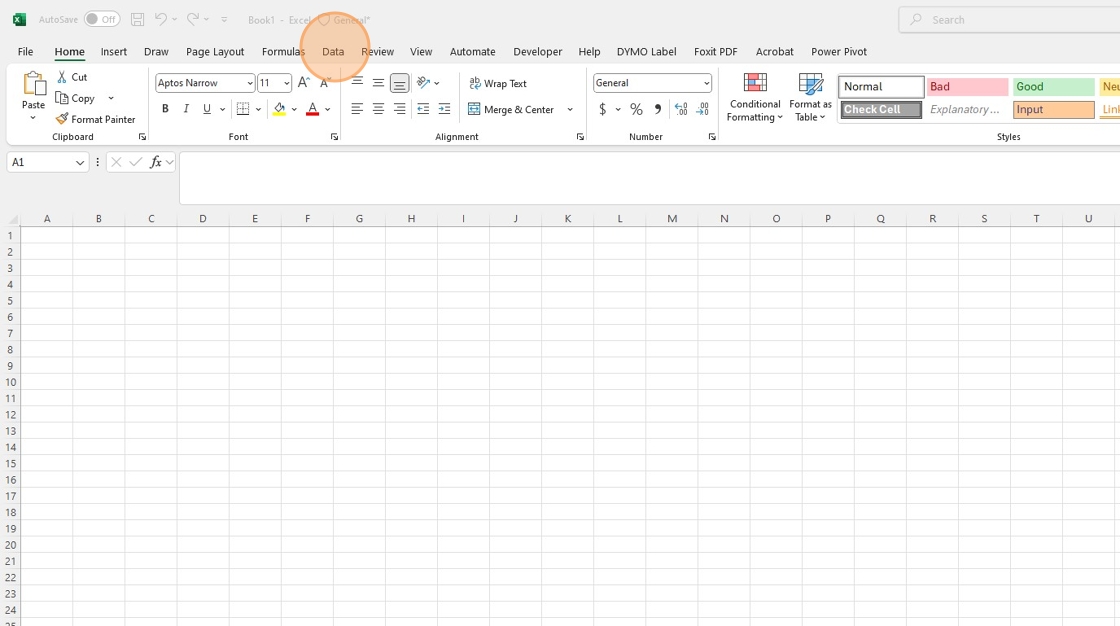
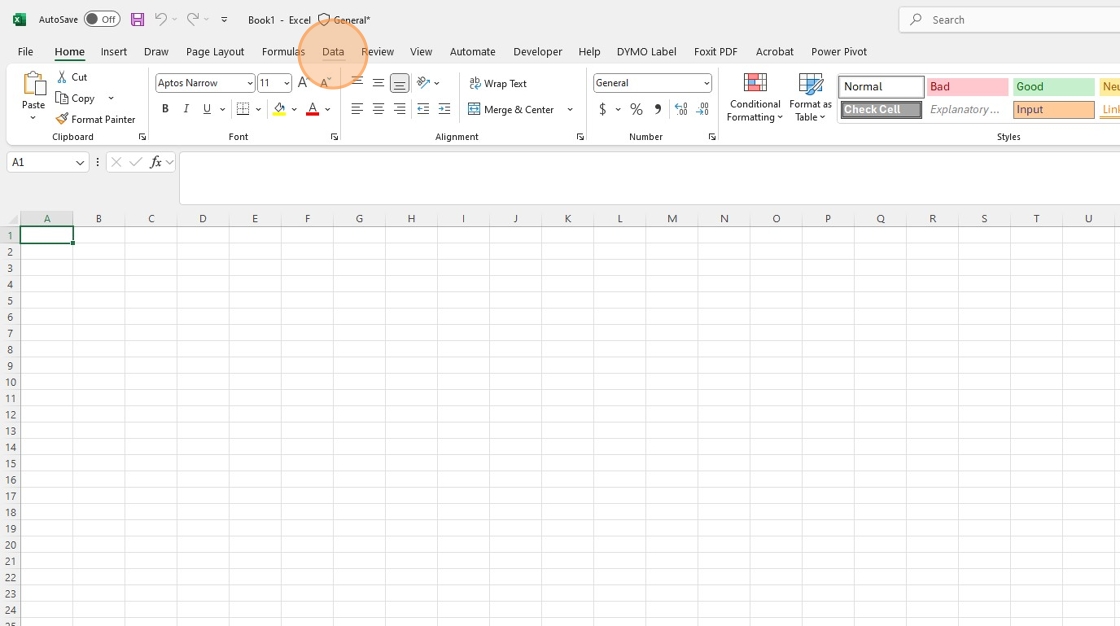
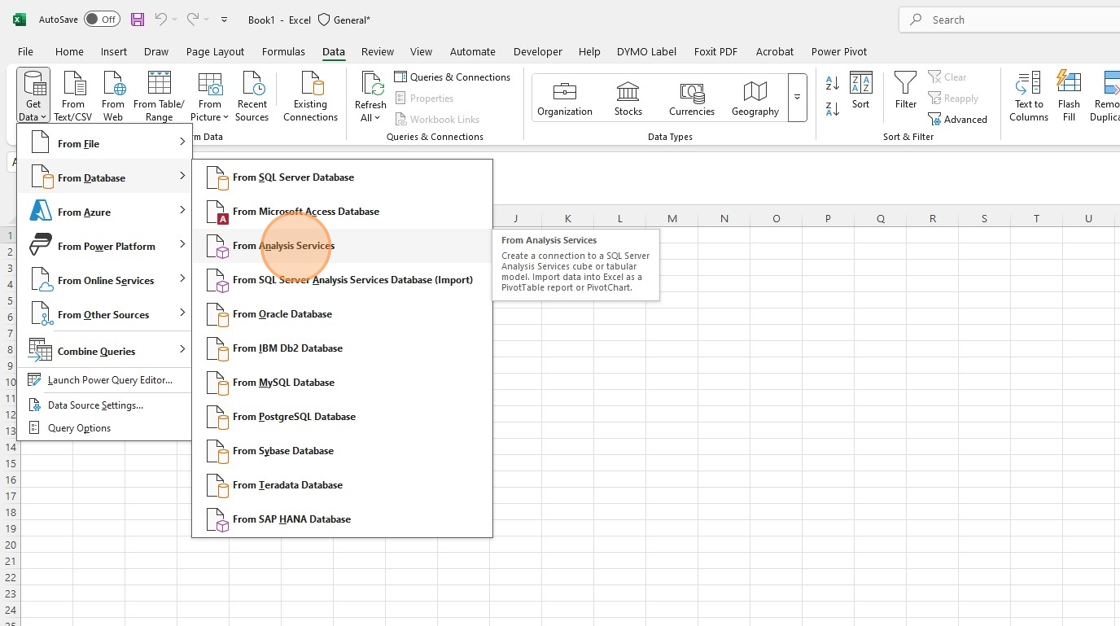
2. Click "Data"
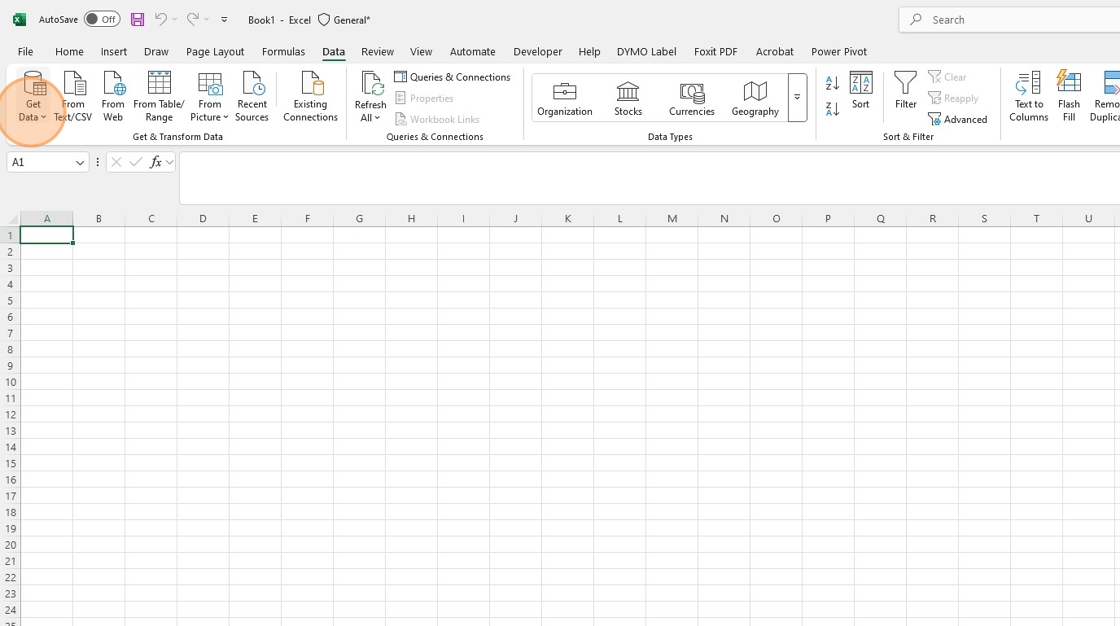
3. Click "Get Data"
4. Click "From Database"
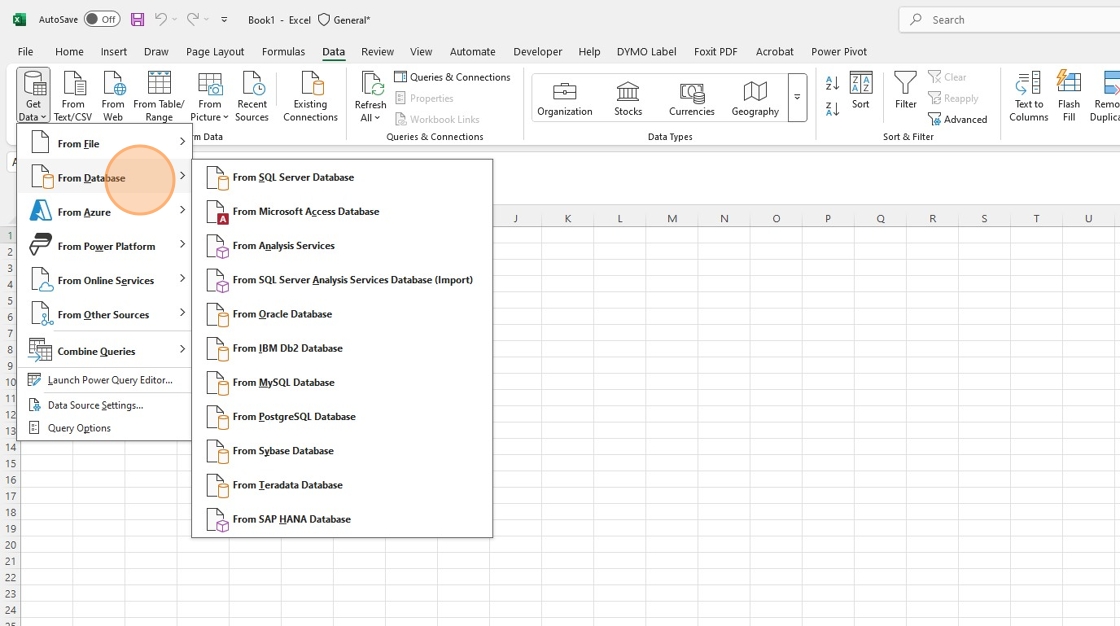
5. Click "From Analysis Services"
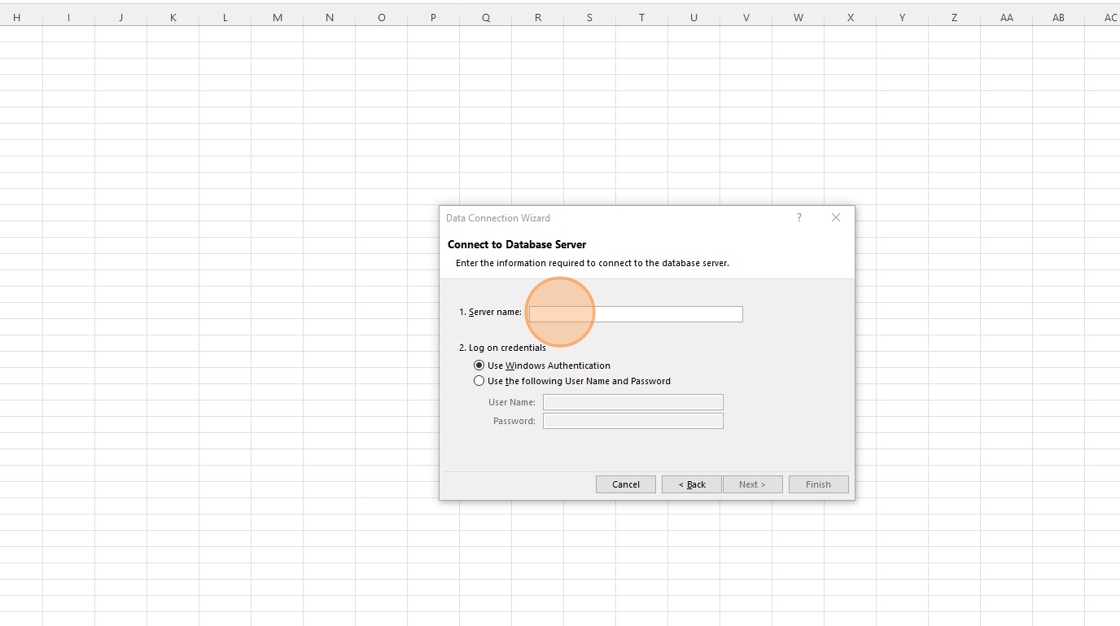
6. Fill Out the Server Name: cityofmartinsvillevacubes.tylerhost.net
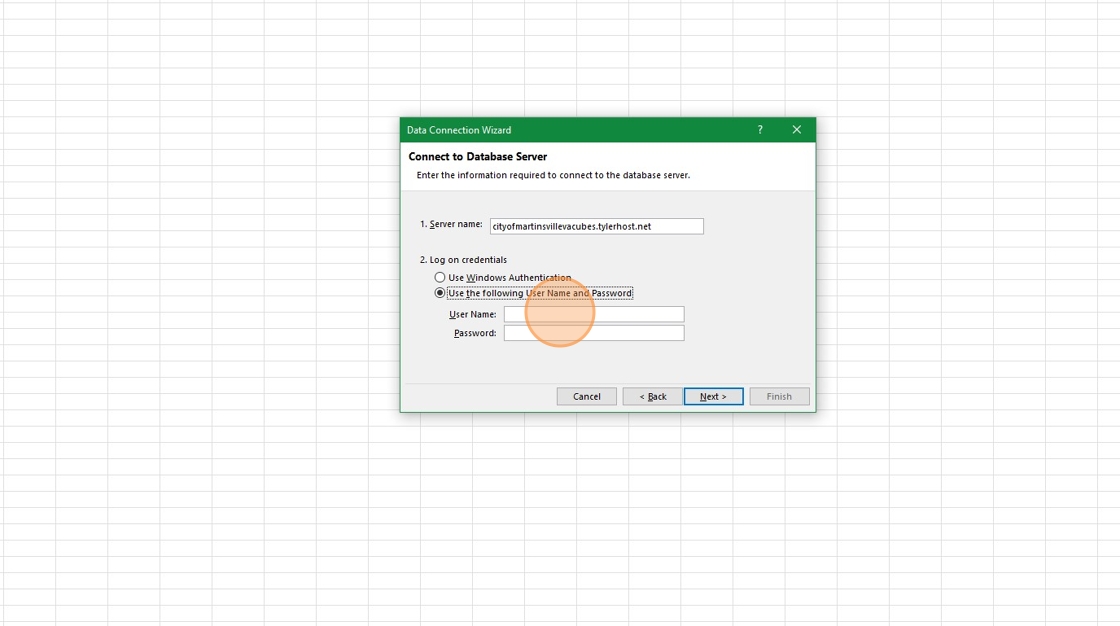
7. Click "Use the following User Name and Password"

8. Chang the user name to your MUNIS Cloud Username. It will start with datacenter\1122XXXX. (Where XXXX is typically your first initial and the first 3 letters of your last name. I.E. John Smith would be datacenter\1122jsmi)
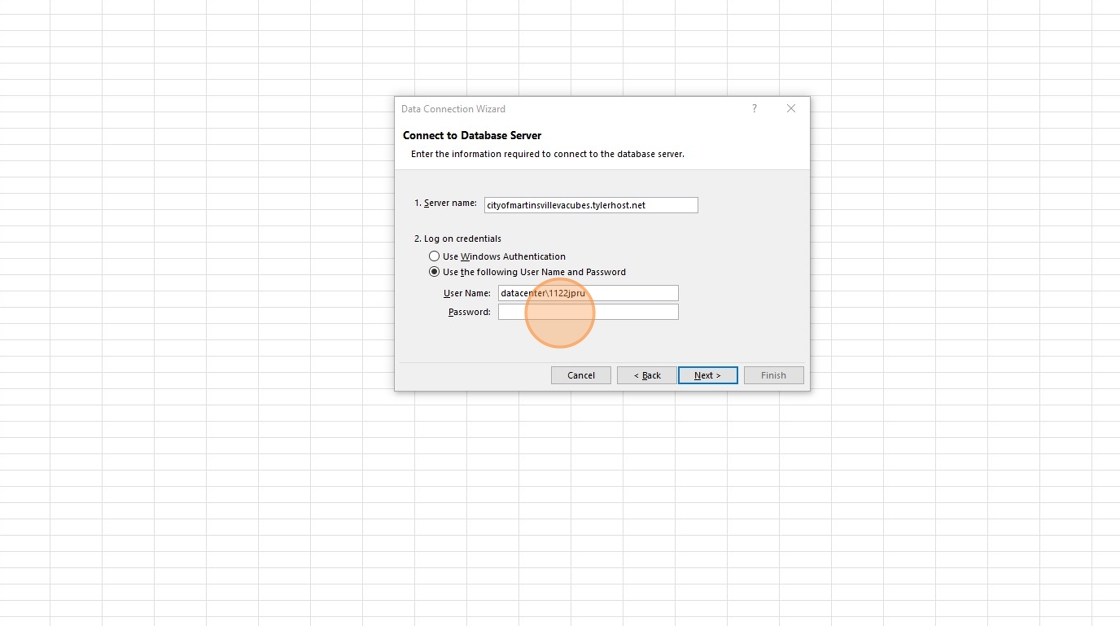
9. Type in your MUNIS Password
10. Click "Next >"

11. Click "Select the database that contains the data you want:" Please Note by default, it chooses the Test Database, make sure you select the Production Database
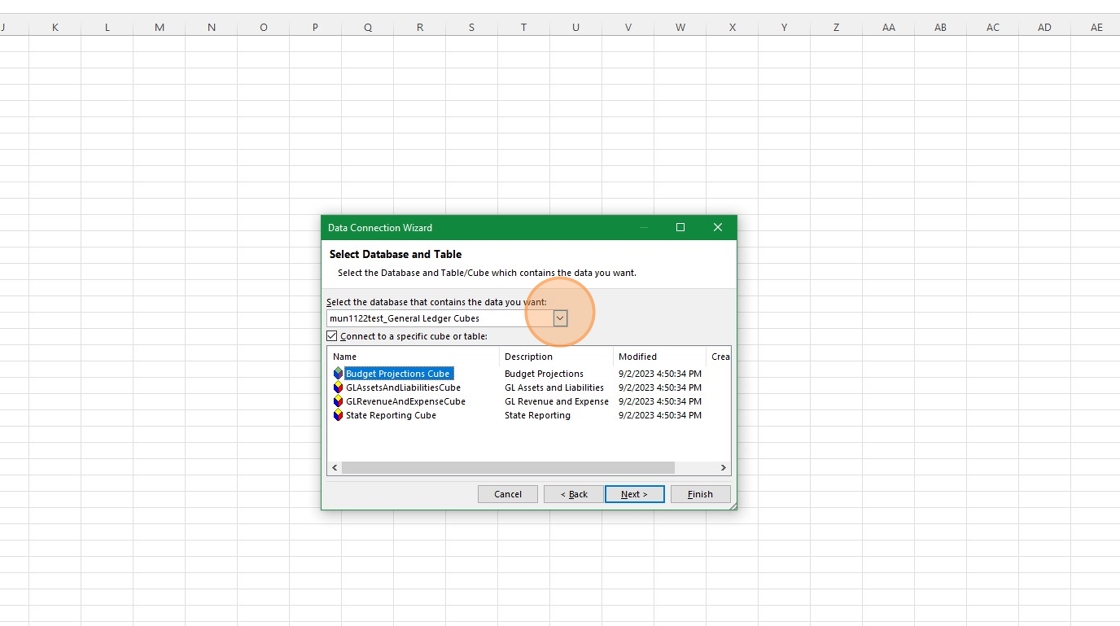
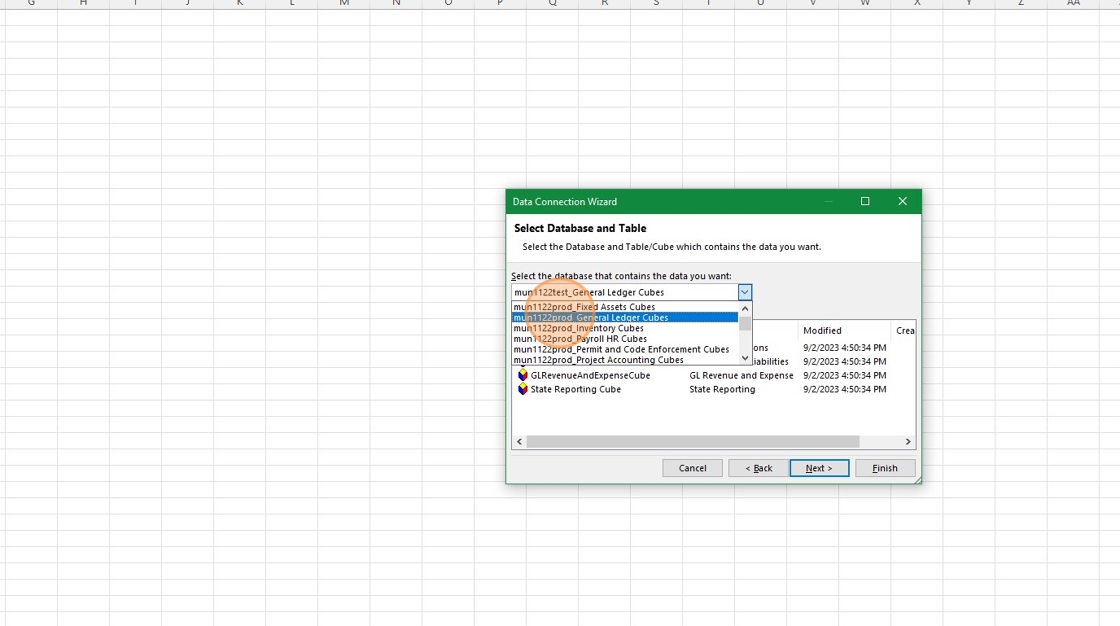
12. Click "mun1122prod_General Ledger Cubes"
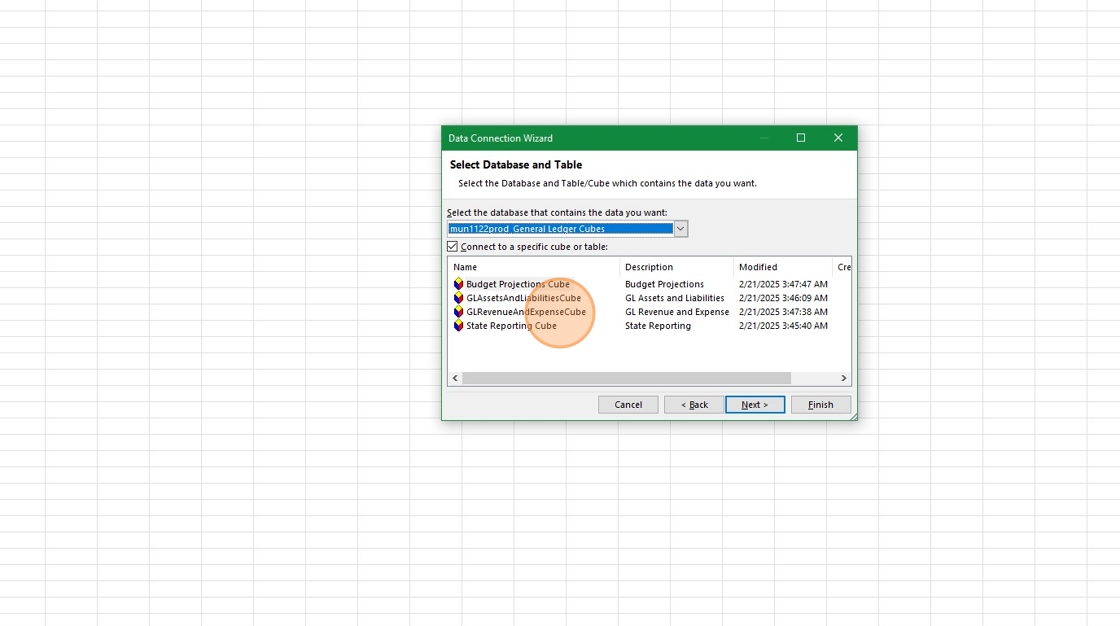
13. Select the Sub Table in the Database "GLRevenueAndExpenseCube"
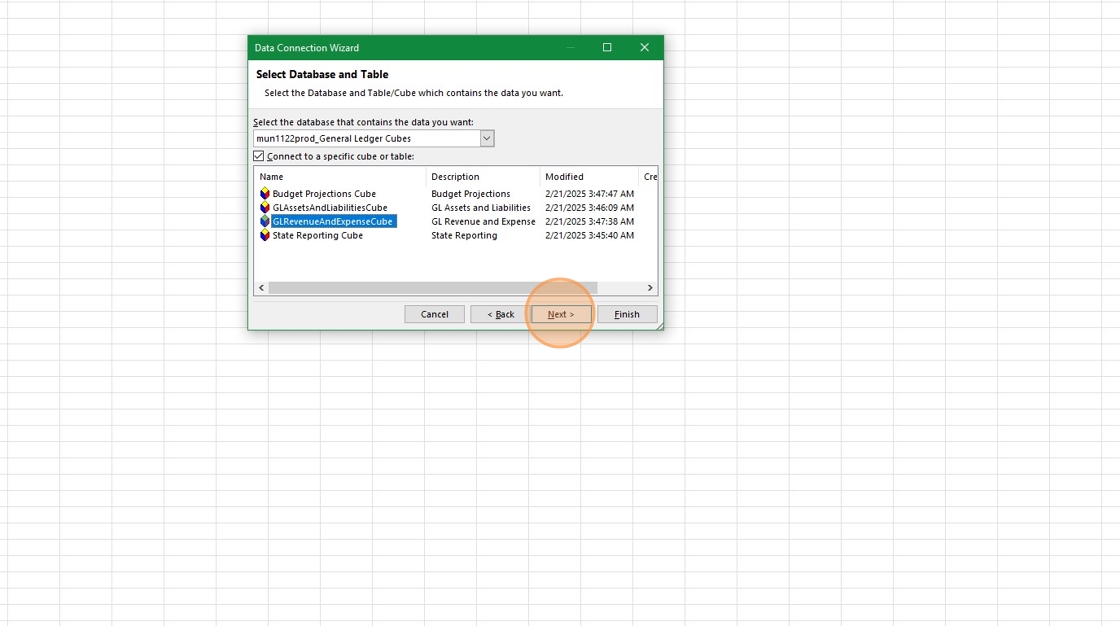
14. Click "Next >"
15. Click "Save password in file"
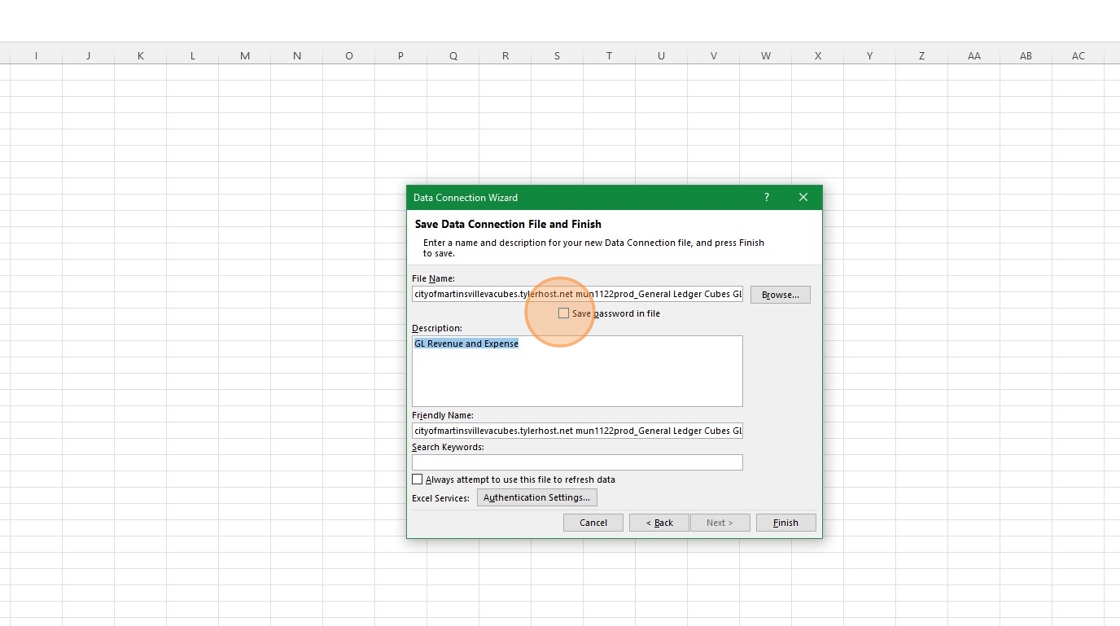
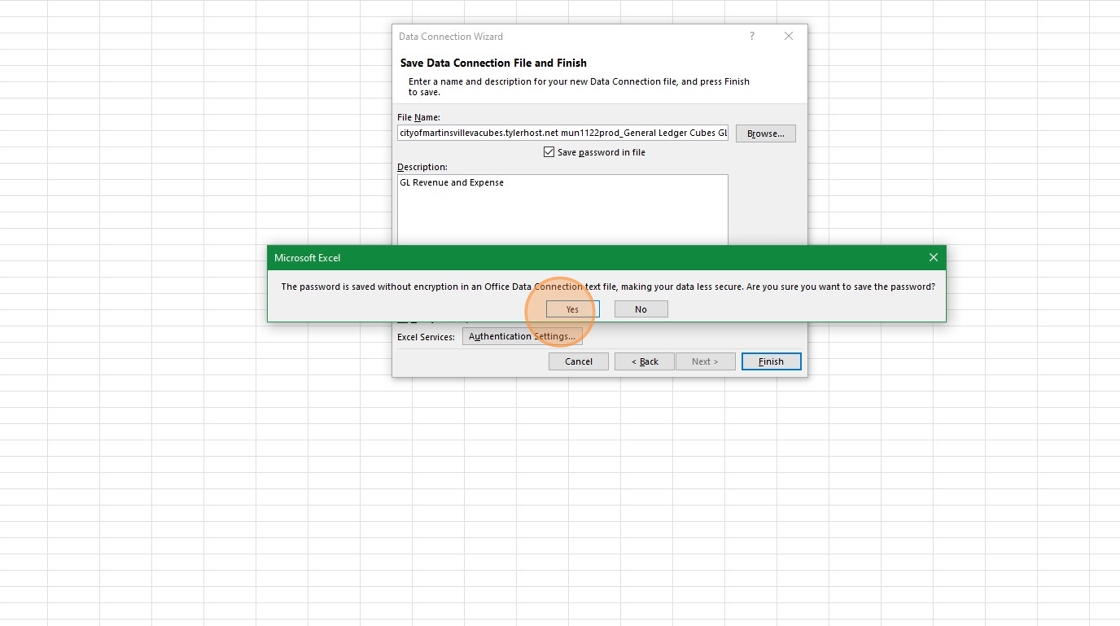
16. Click "Yes"
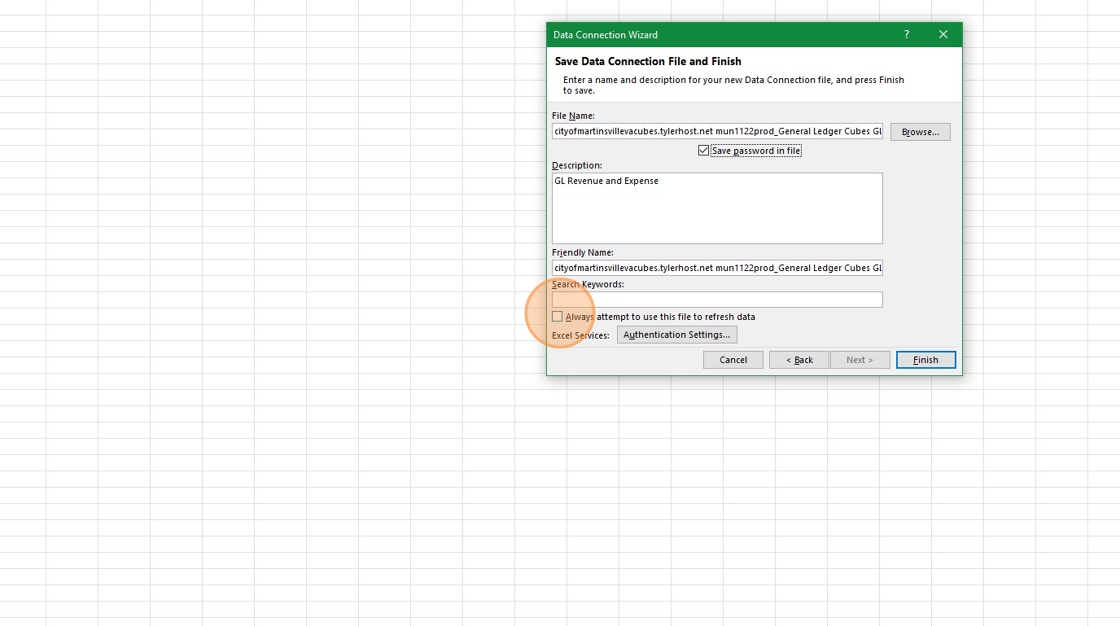
17. Click "Always attempt to use this file to refresh data"
18. Click "Finish"
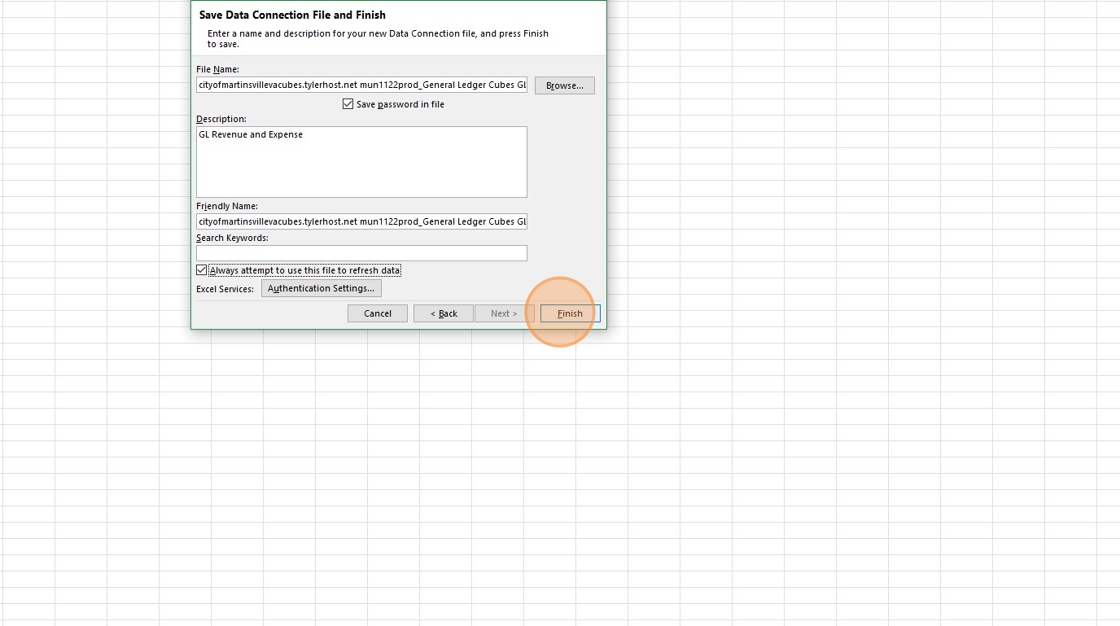
19. Click "OK"
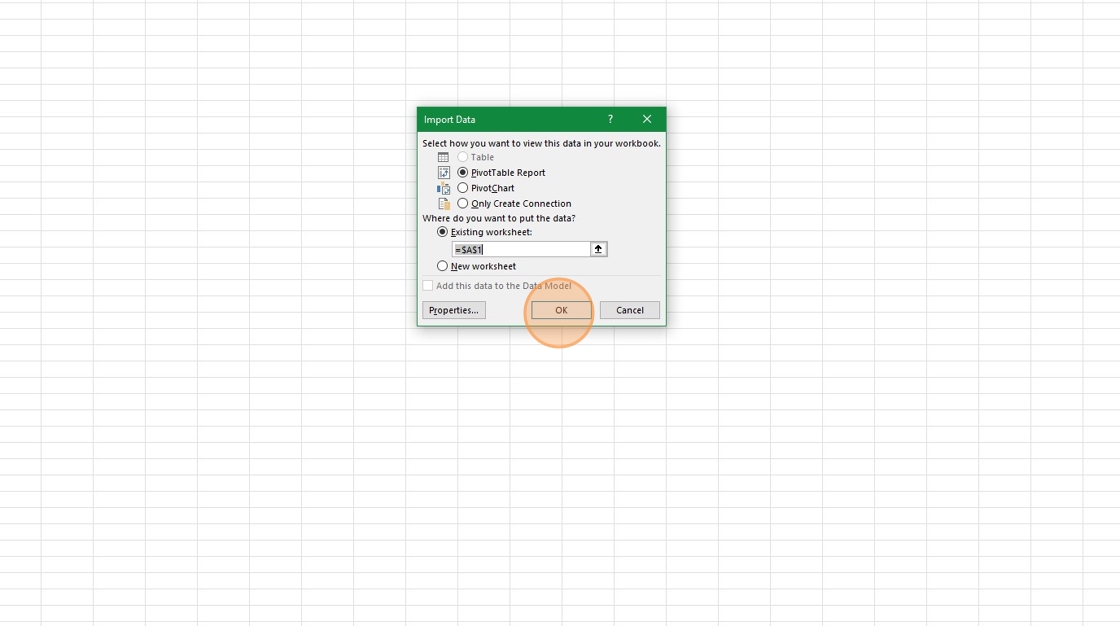
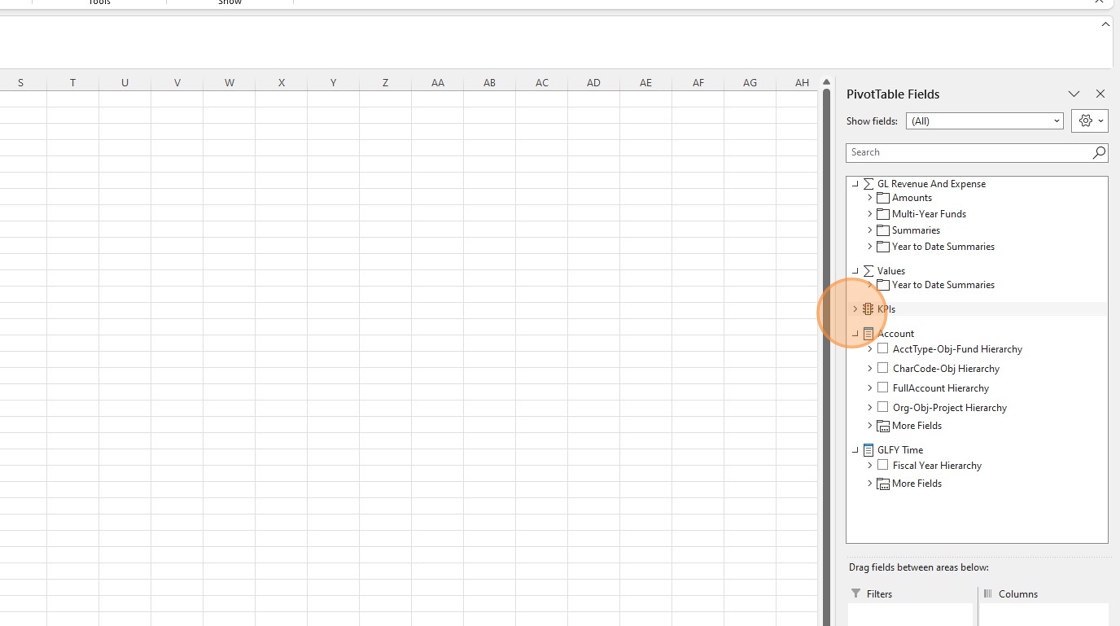
20. Select the information you want to utilize in Cubes
Was this article helpful?
That’s Great!
Thank you for your feedback
Sorry! We couldn't be helpful
Thank you for your feedback
Feedback sent
We appreciate your effort and will try to fix the article