Download and Install GlobalProtect VPN Agent
This guide provides a straightforward process for downloading and installing the GlobalProtect VPN Agent, essential for accessing the City Network remotely. It simplifies the steps, ensuring users can connect securely and efficiently. By following this guide, you can gain remote access to vital resources, enhancing your productivity and connectivity while working outside the office. Don't miss out on the opportunity to stay connected and secure with this easy-to-follow installation process.
1. Open your web browser
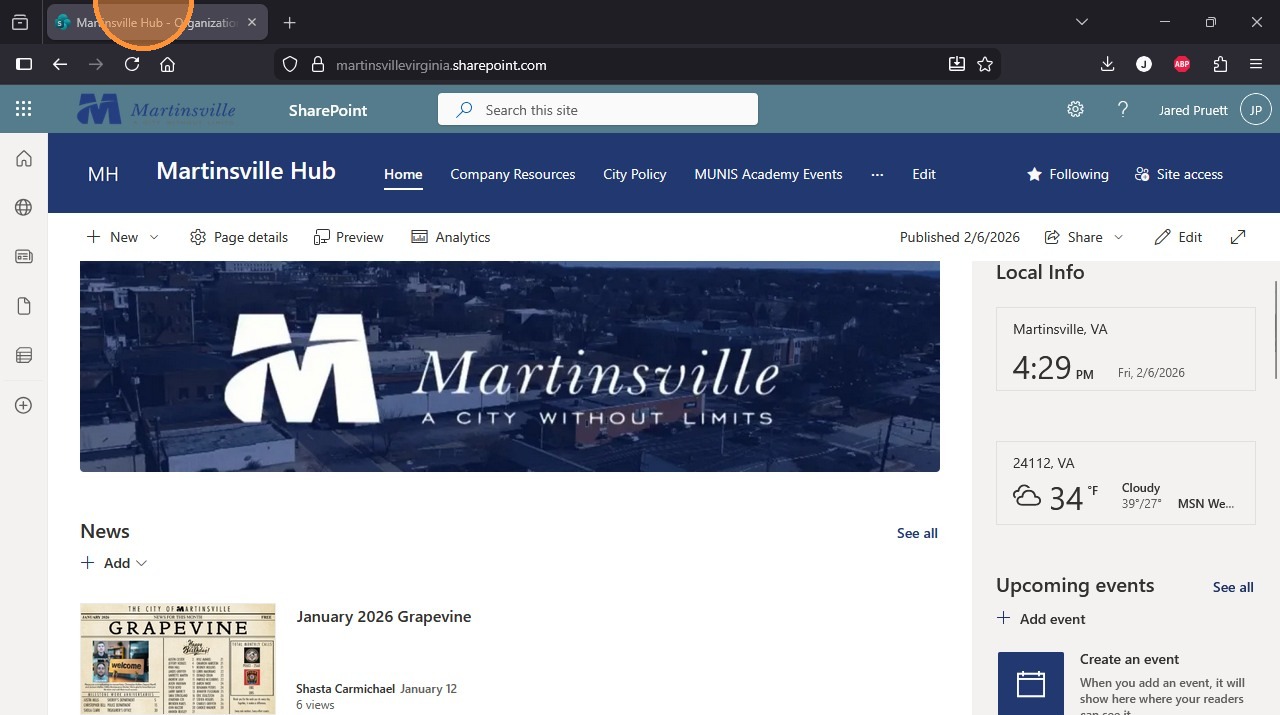
2. Go to "https://martinsvillevirginia.sharepoint.com"
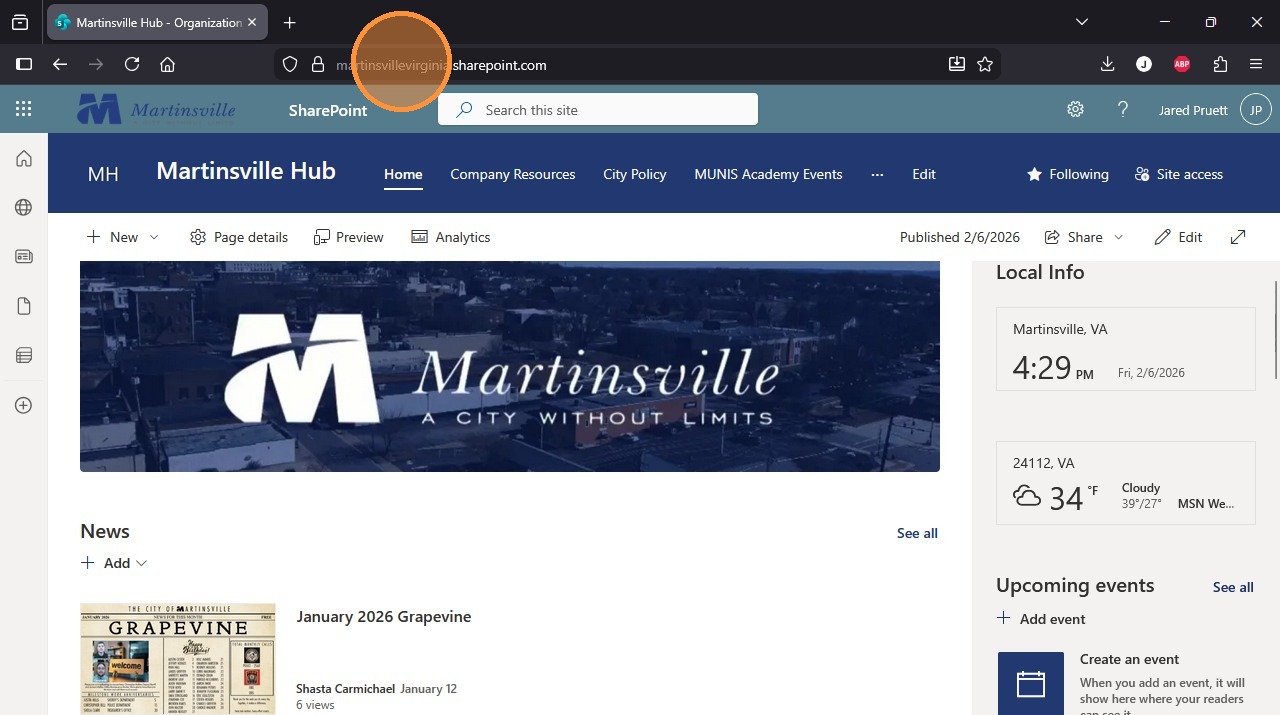
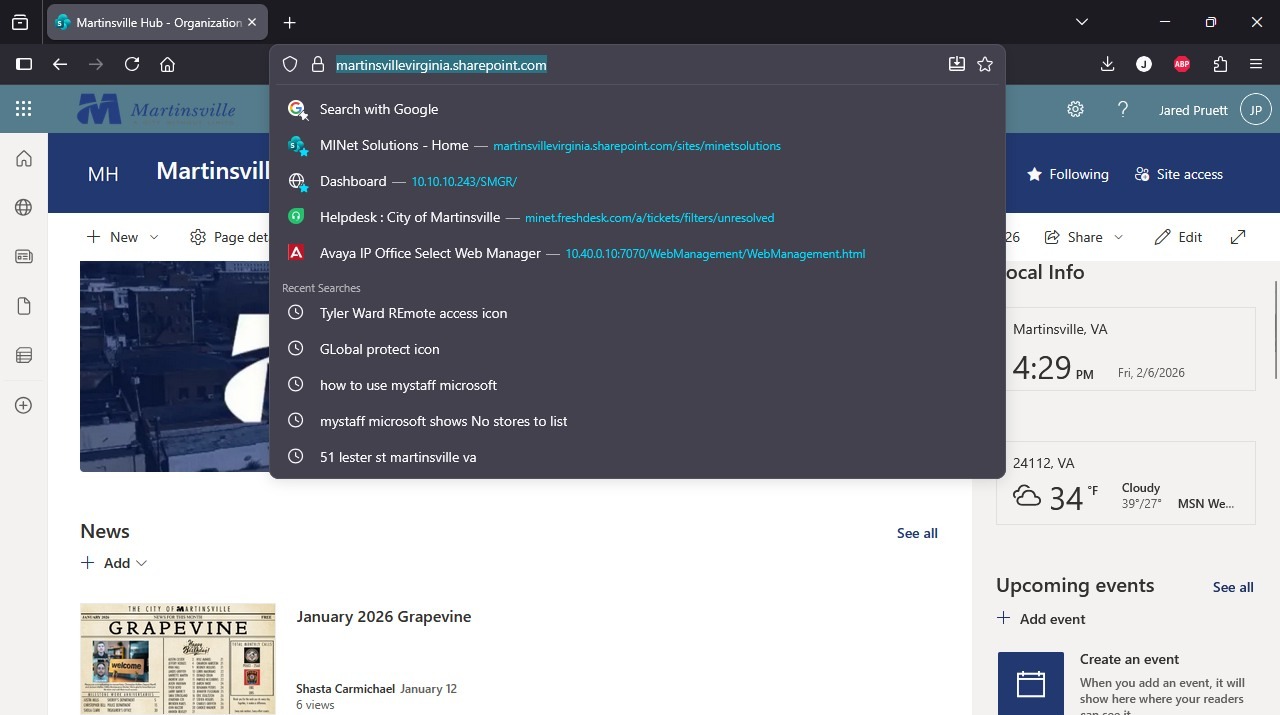
3. Press [[Return]]
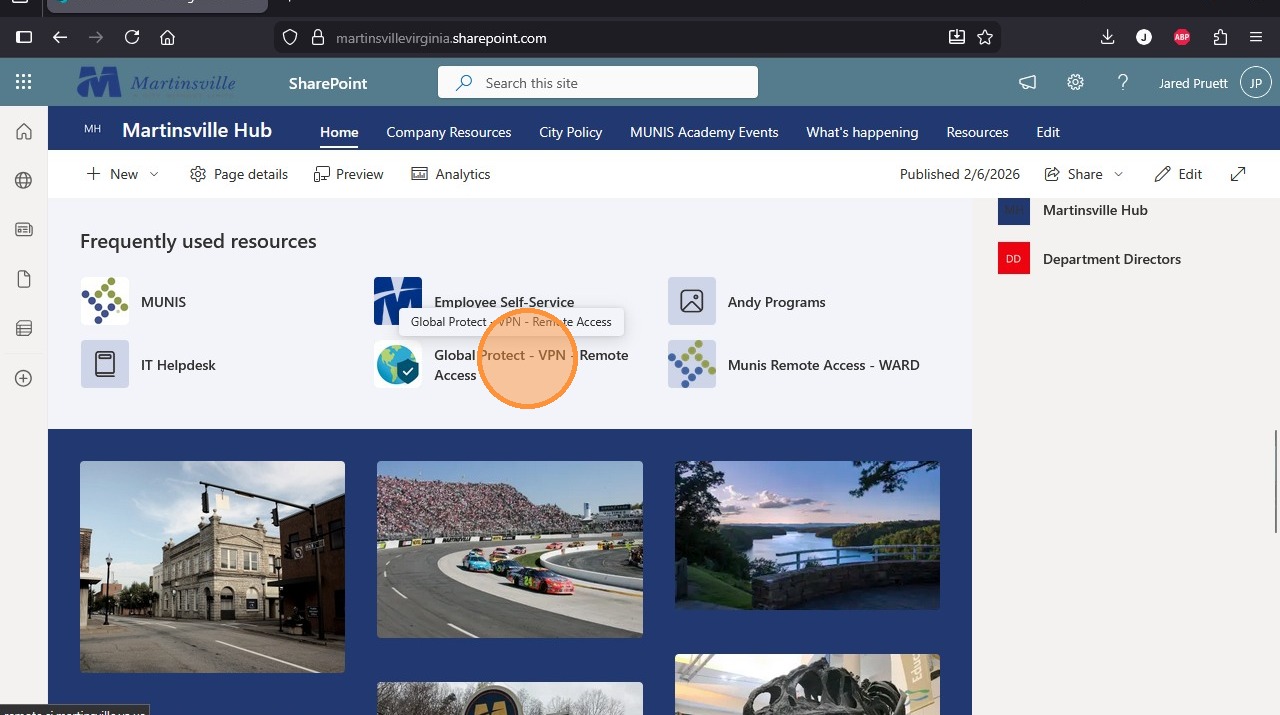
4. Scroll down to Frequently Used Resources and Click "Global Protect"
5. Fill out the first part of your email address (jpruett)
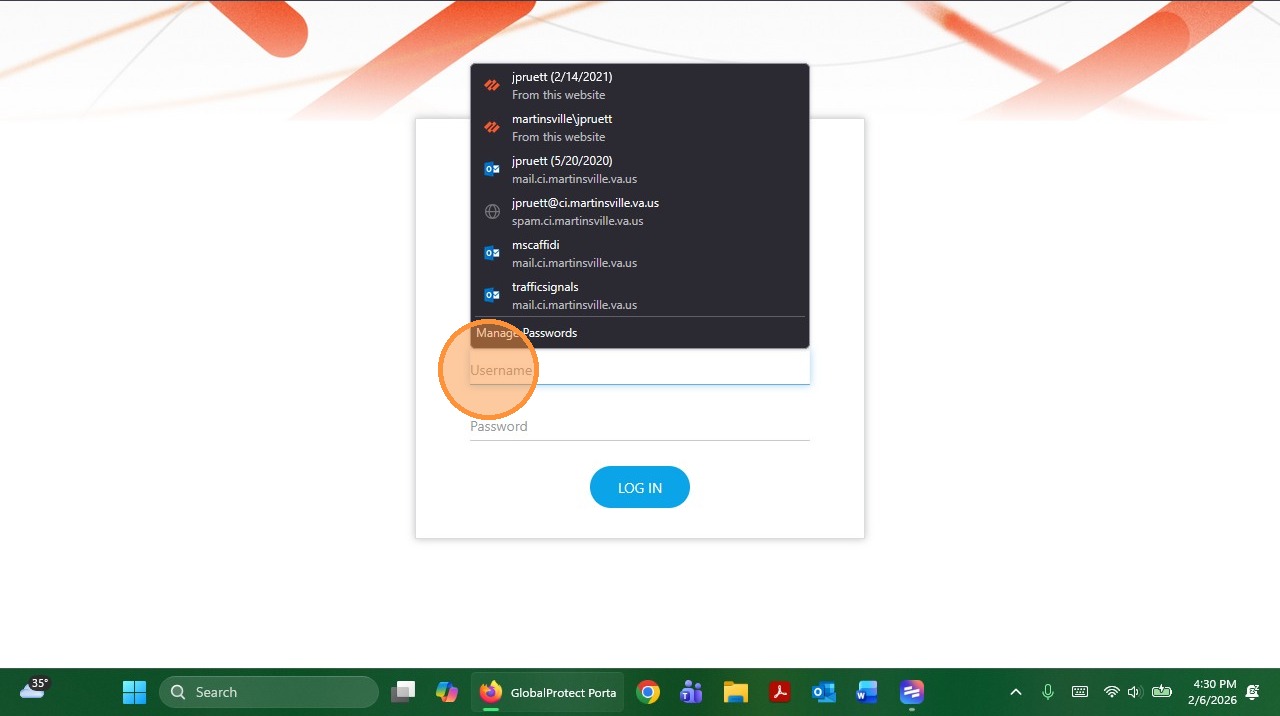
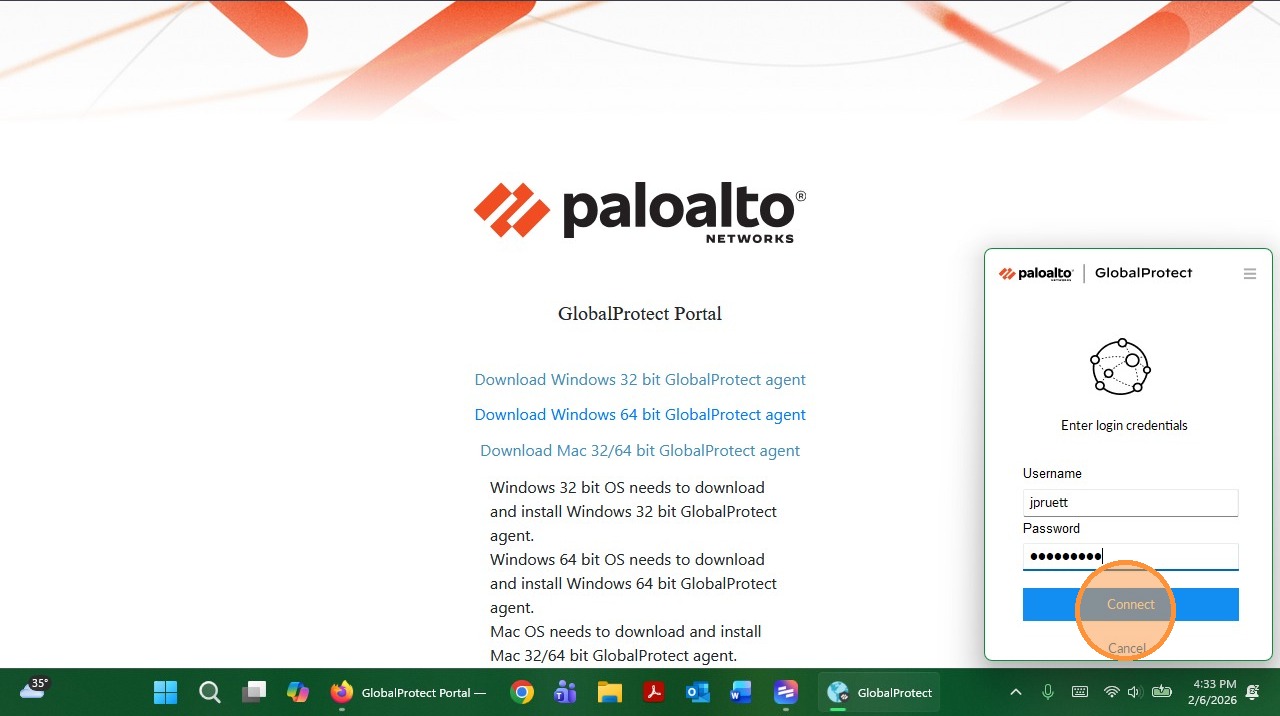
6. Enter your Computer Password - The same password you use to login to your computer or email.
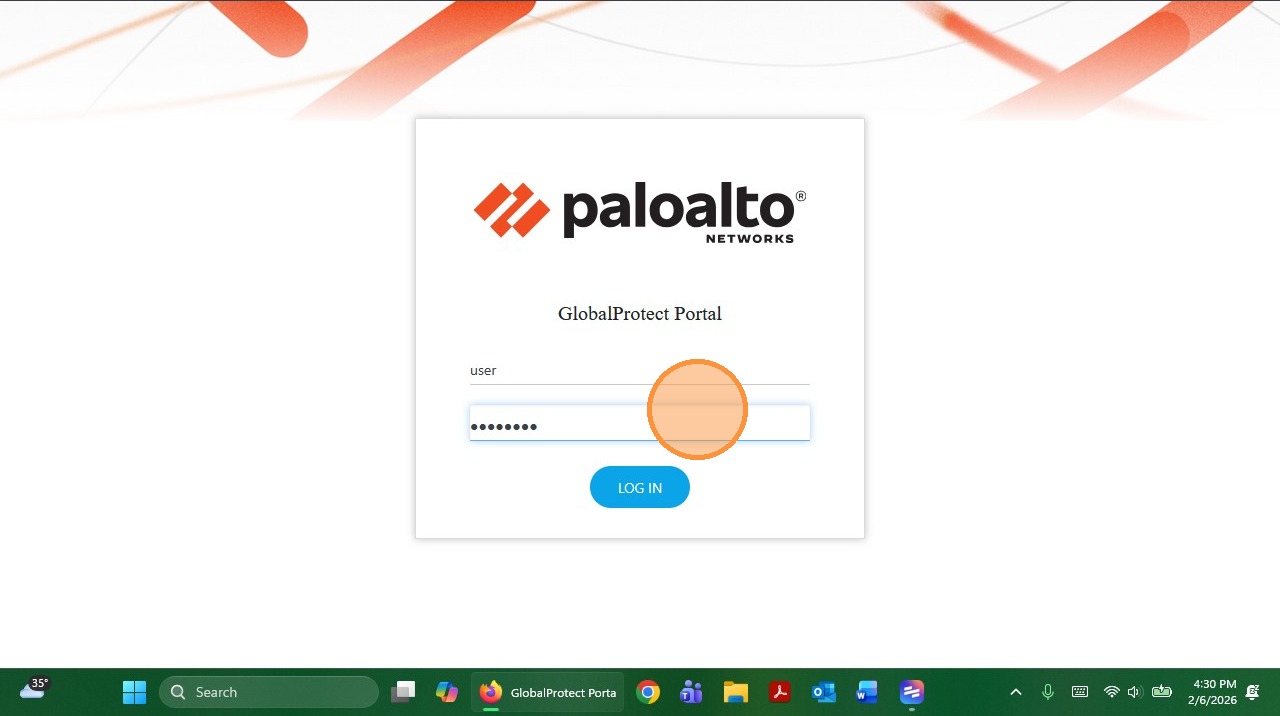
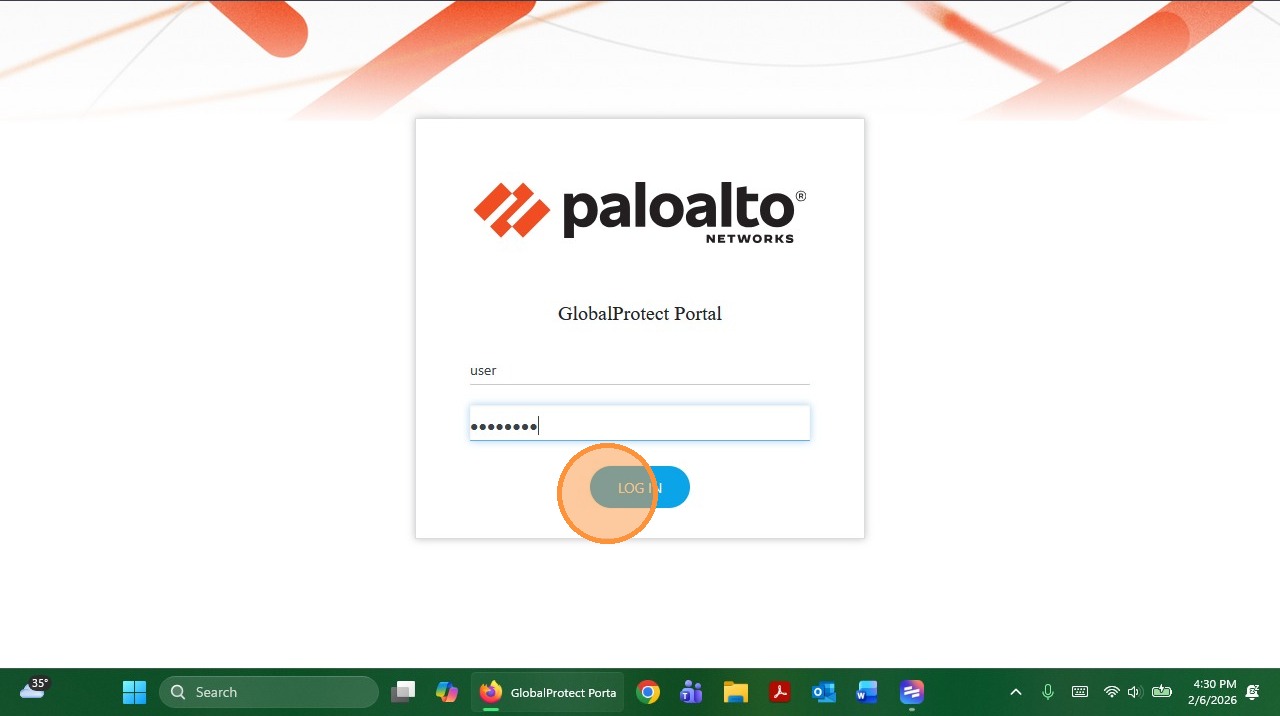
7. Click "LOG IN"
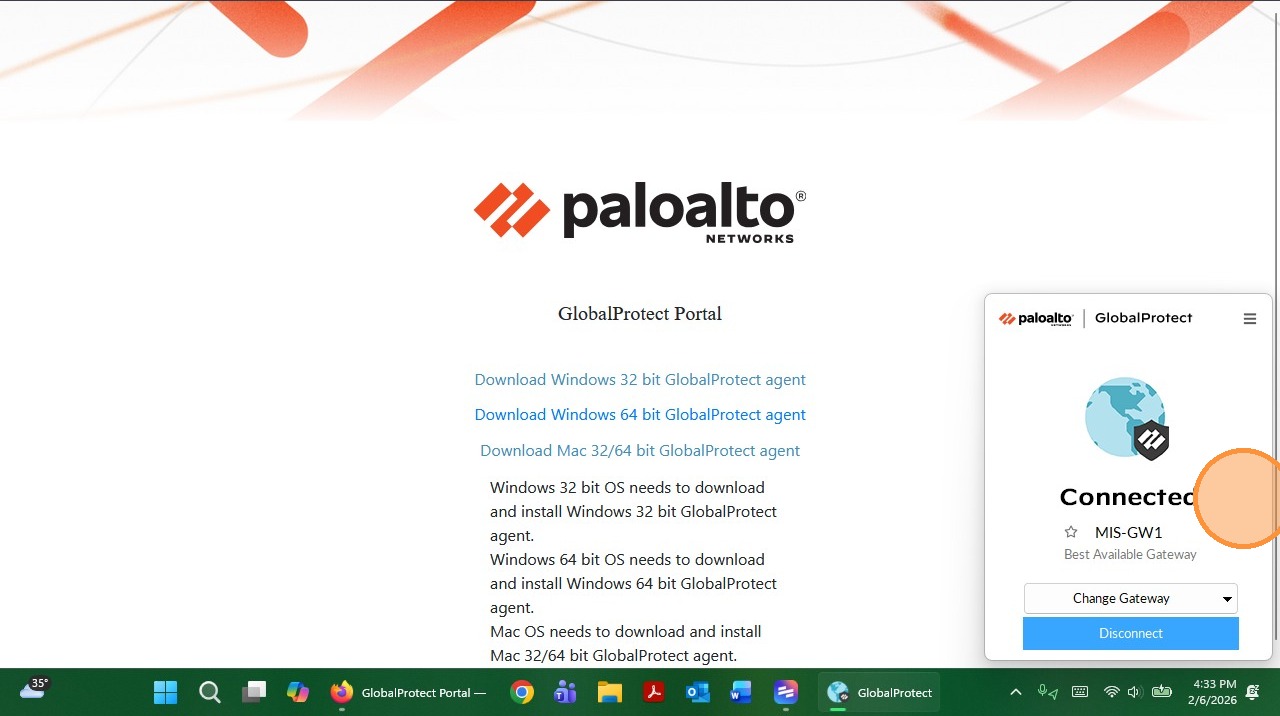
8. Click "Download Windows 64 bit GlobalProtect agent"
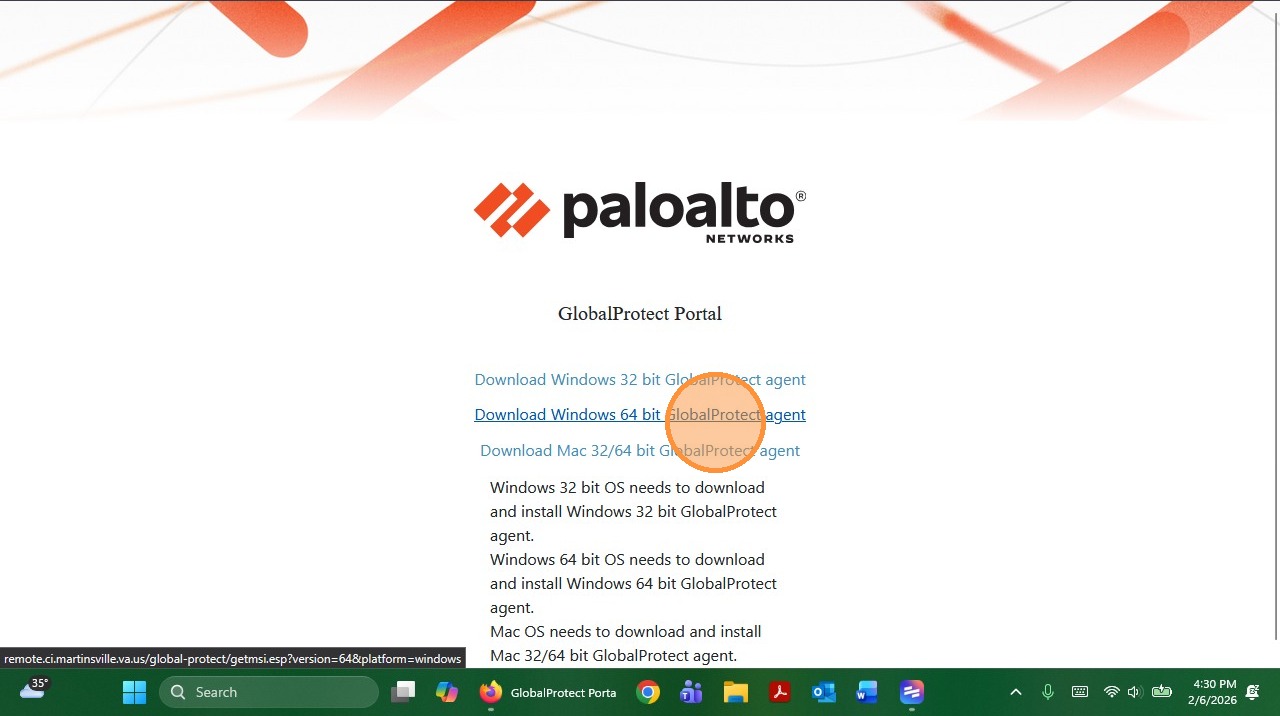
9. It will download the VPN client called GlobalProtect64.msi - Launch that application
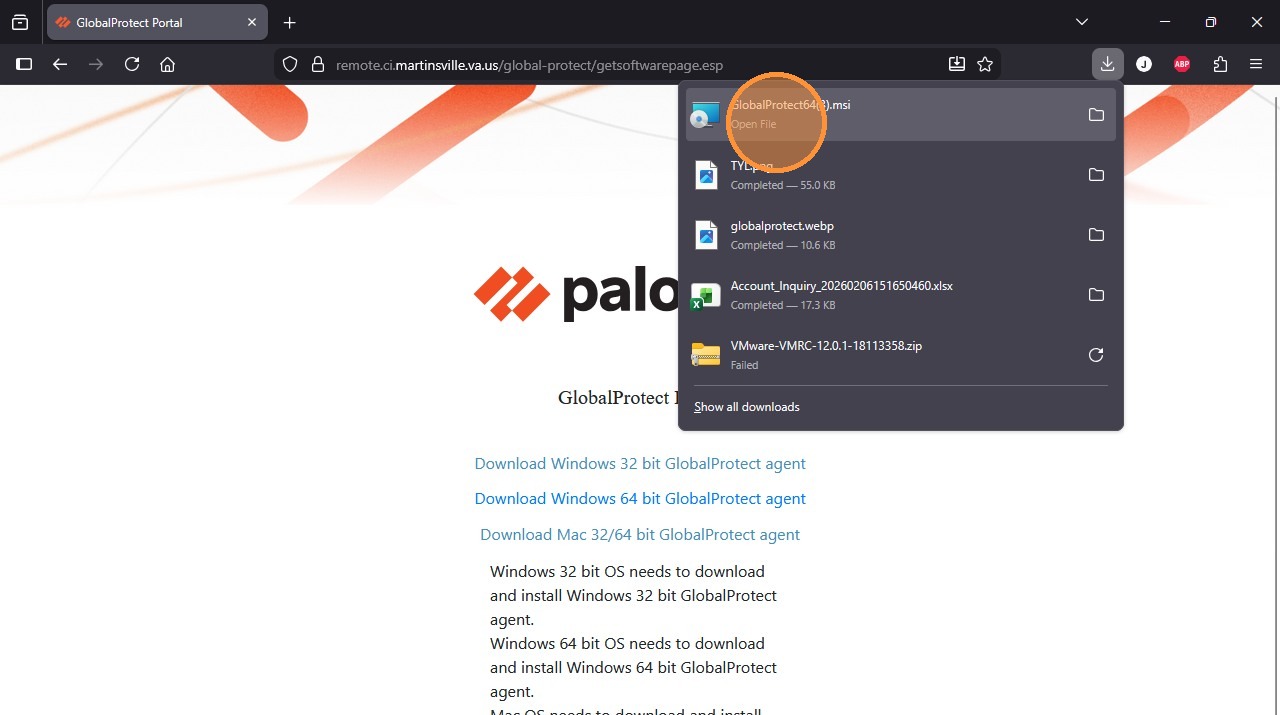
10. Follow the install prompts accepting the default values.
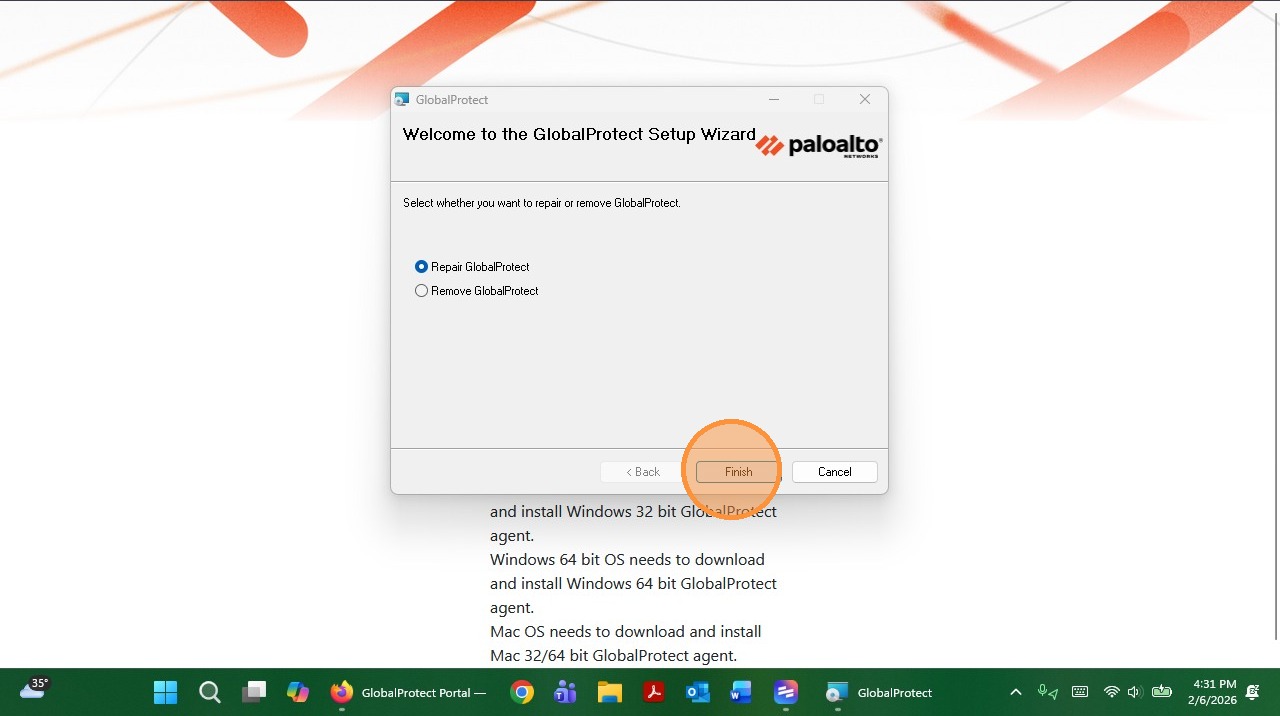
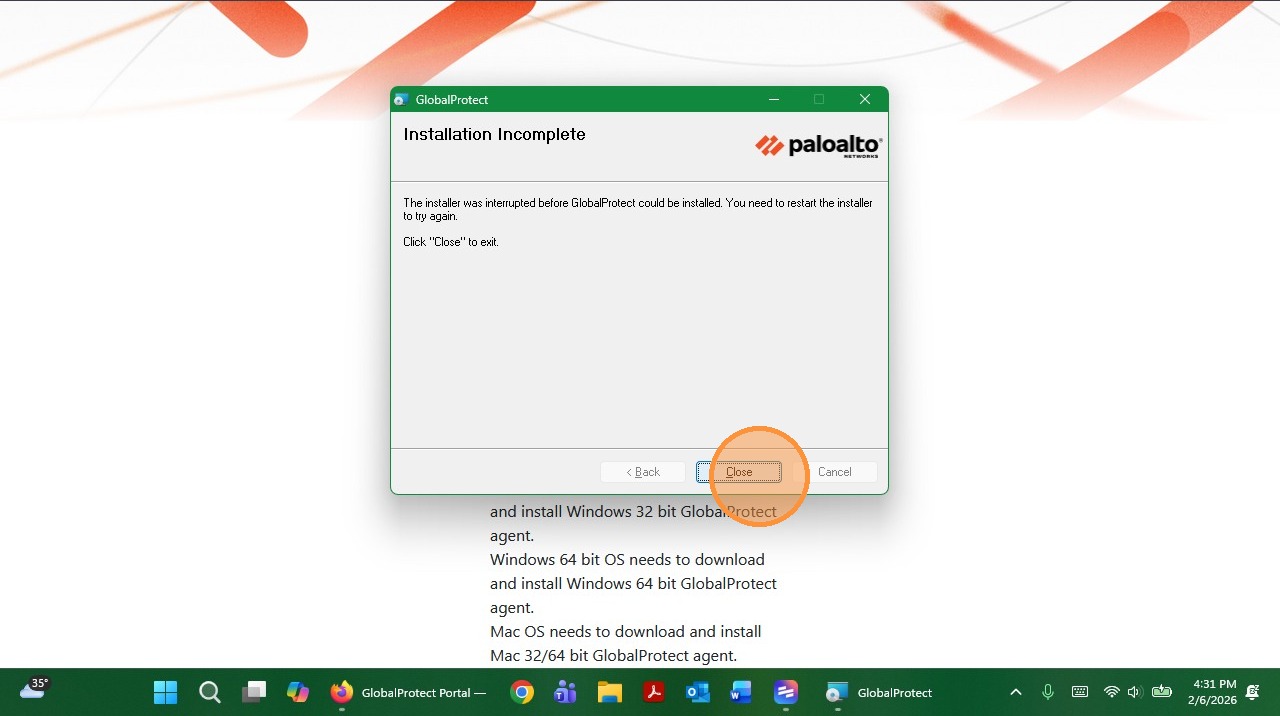
11. Once complete, Click "Close"
12. Click the Start Button
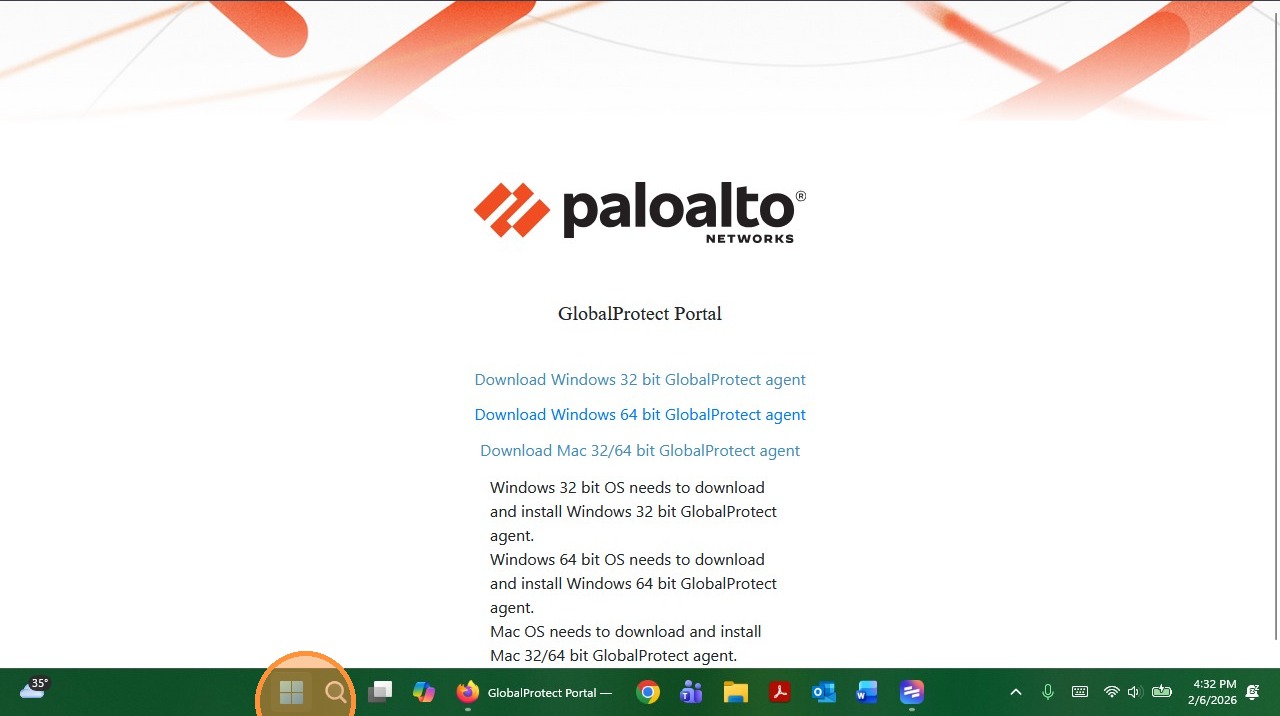
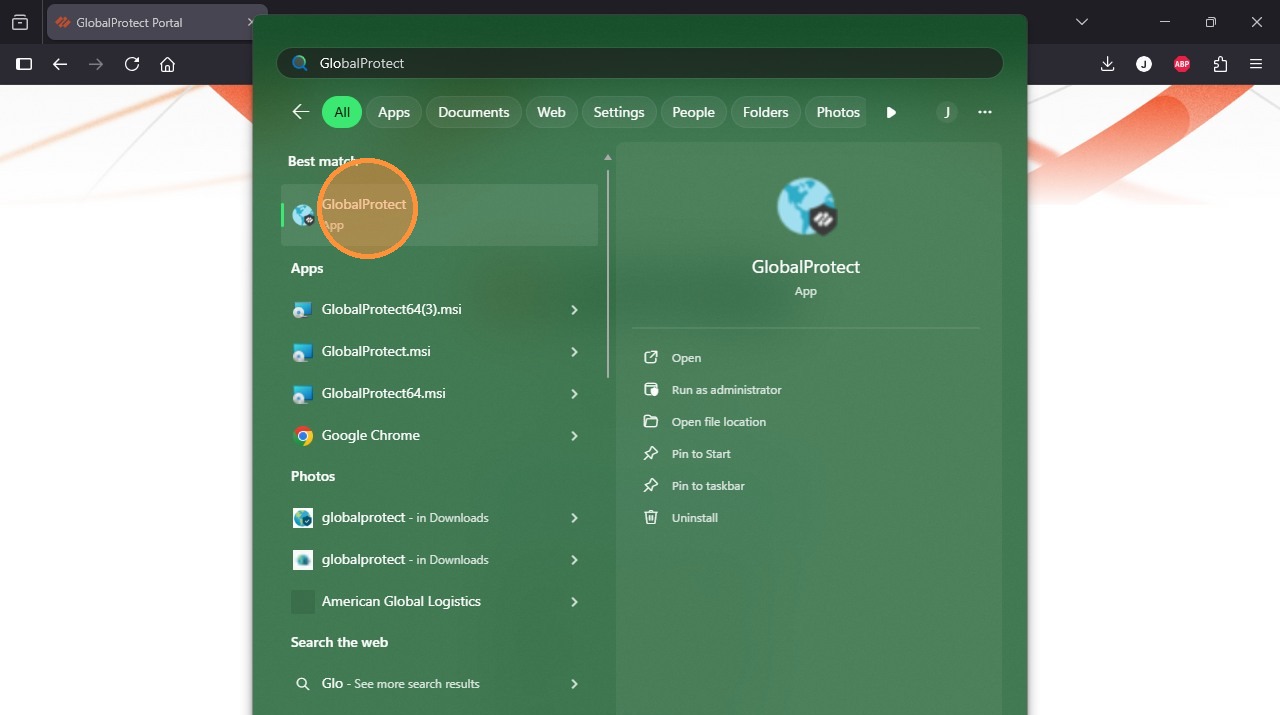
13. Search GlobalProtect, and Click here
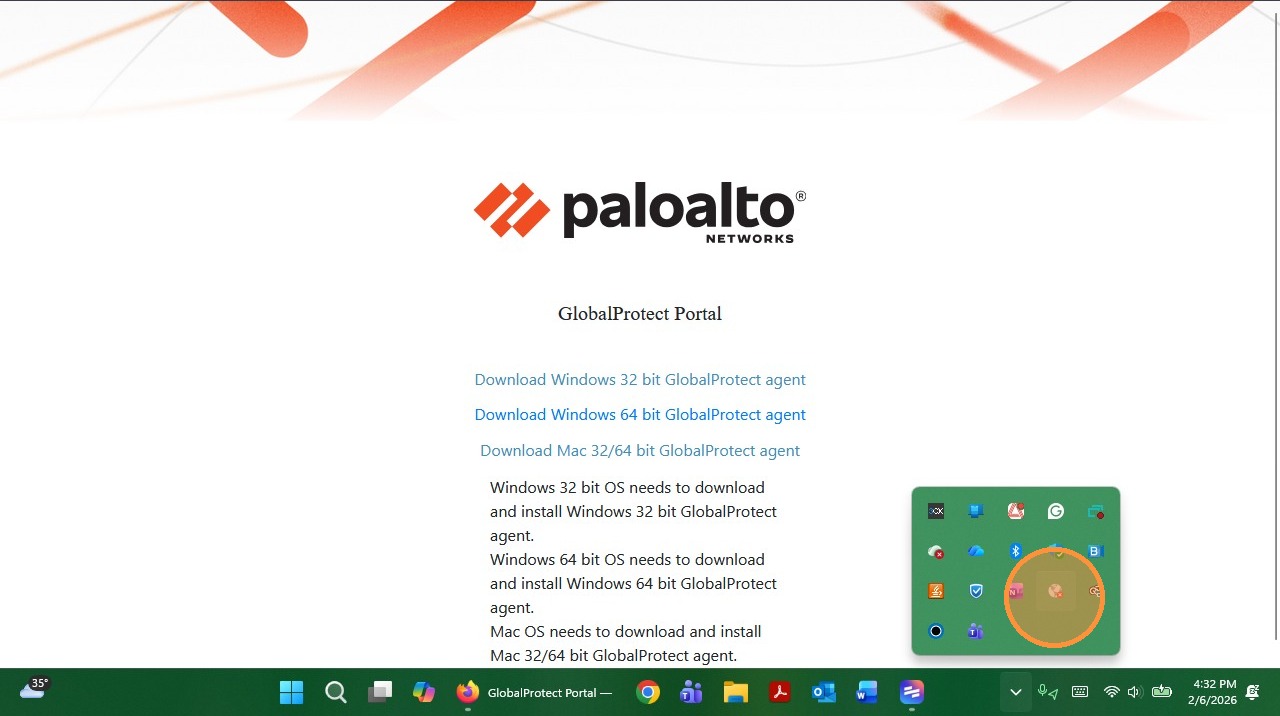
14. Click "System tray overflow window."
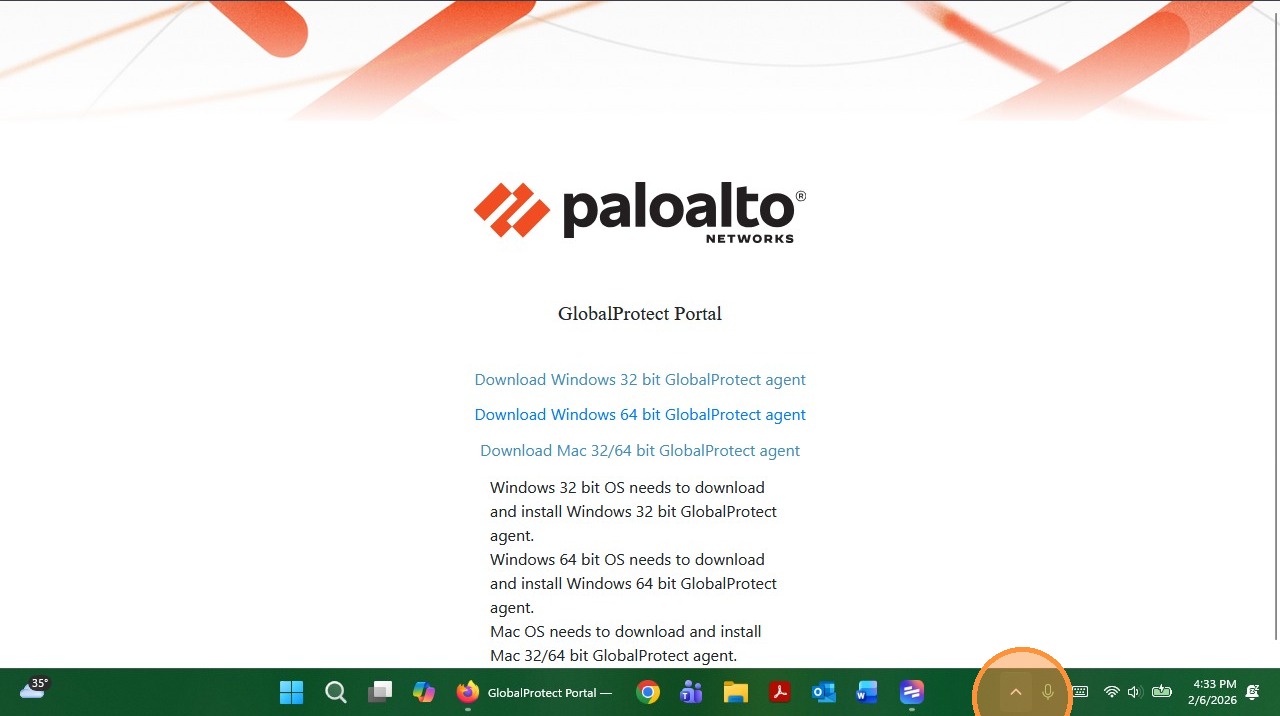
15. Click here
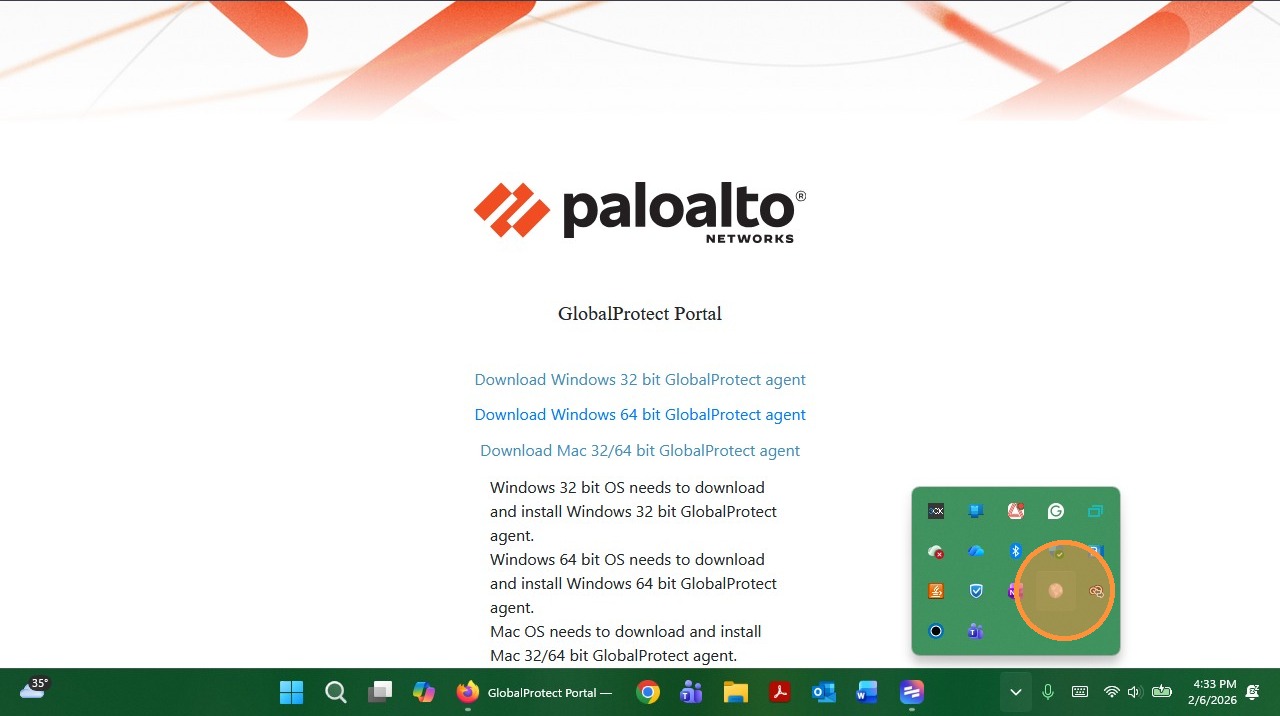
16. Click the Grey GlobalProtect Icon in (It looks like a World) in System tray overflow window.
17. Click "Portal"
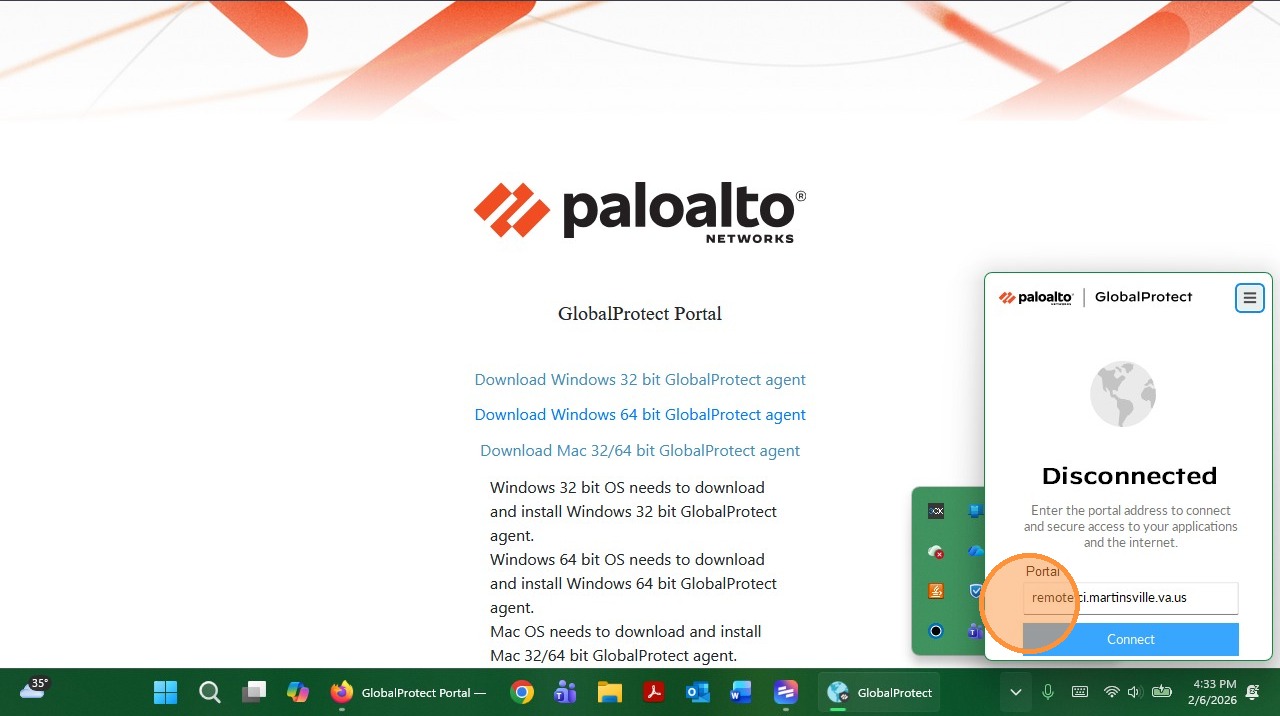
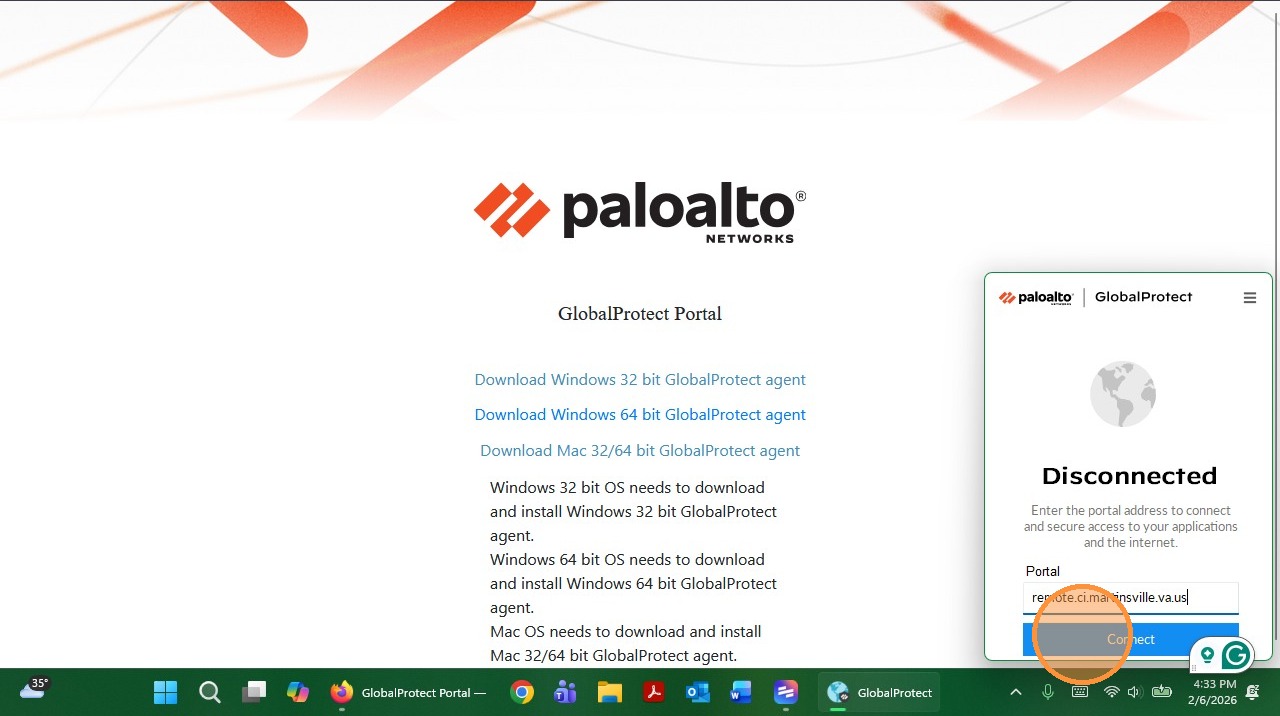
18. Type in remote.ci.martinsville.va.us
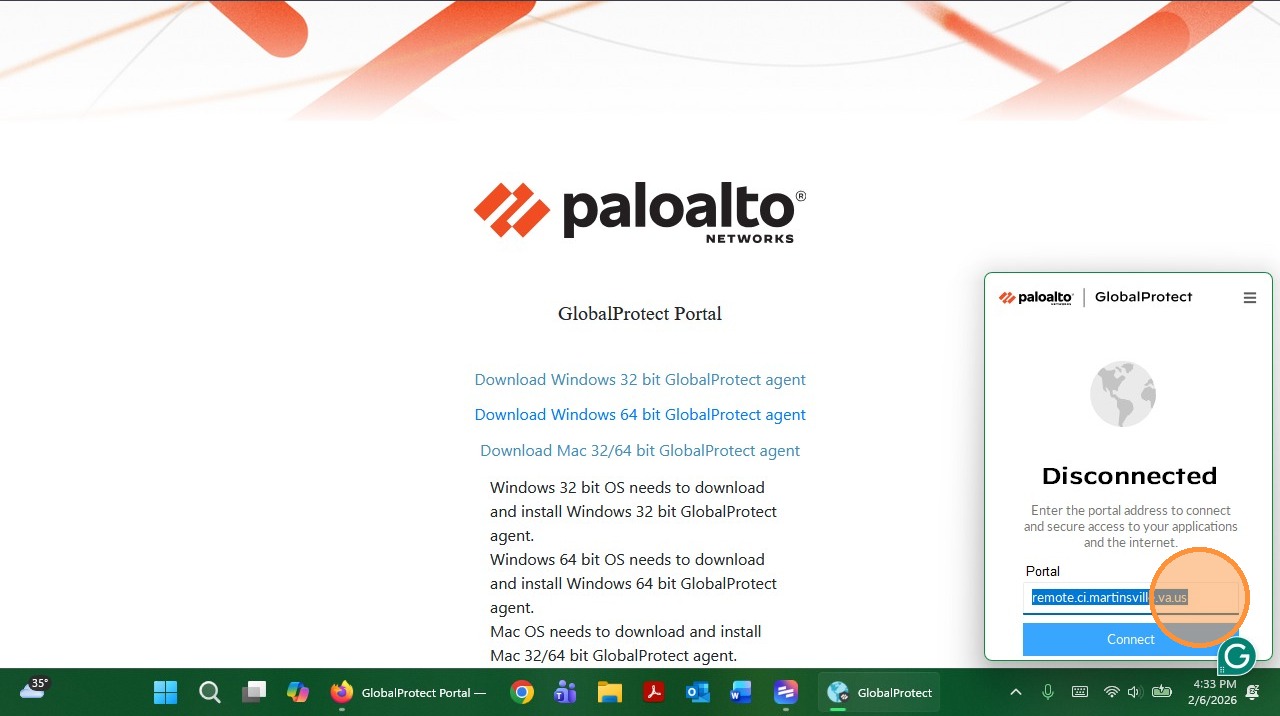
19. Click Connect
20. Fill out the first part of your (jpruett) and your computer password (Same as step 6)
21. You are now "Connected" and have remote access to everything you have access to inside the City Network (Except for MUNIS). If you need access to MUNIS. You must launch WARD.
Was this article helpful?
That’s Great!
Thank you for your feedback
Sorry! We couldn't be helpful
Thank you for your feedback
Feedback sent
We appreciate your effort and will try to fix the article